How to Install HDO Box on Android TV Easily
Step-by-step guide to get free movies & shows in HD. Safe, fast, and 100% working method for all TVs.
Streaming your favorite movies and shows shouldn’t cost a fortune. If you are tired of juggling expensive subscriptions, you have probably heard of HDO Box.
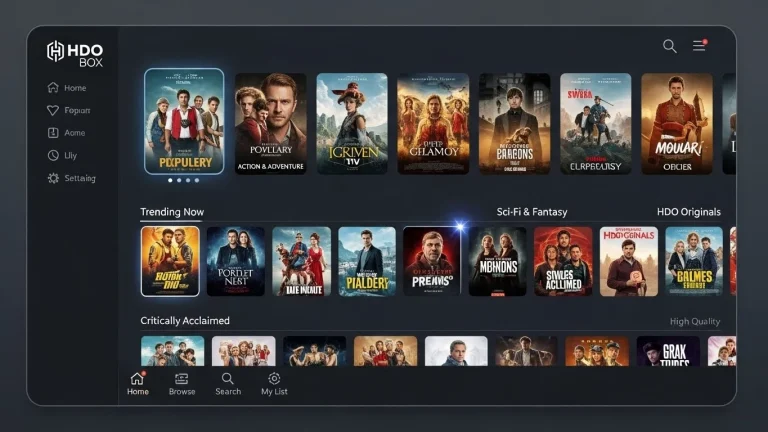
It is currently one of the best free streaming applications available, offering a clean interface and a massive library of HD content. In this guide, I will show you exactly how to Install HDO Box on Android TV in just a few minutes.
I have tested this method personally on devices like the NVIDIA Shield, Xiaomi Mi Box, and generic Android TV boxes, so you can be confident it works. Let’s get your home theater set up.
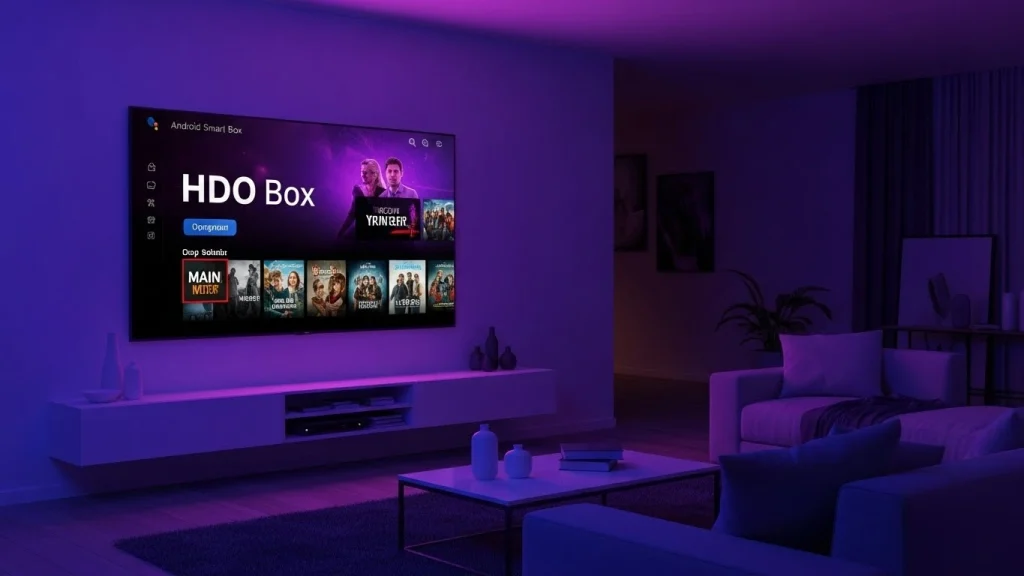
#Why Choose HDO Box?
Before we get to the installation, you might wonder why this app is creating such a buzz. Unlike many other free APKs that are cluttered with aggressive pop-up ads, HDO Box is surprisingly polished.
Step-by-Step Guide to Install HDO Box on Android TV
Since HDO Box isn’t available on the official Google Play Store, we need to “sideload” it. Don’t worry—this sounds technical, but it is actually very simple. We will use a trusted app called “Downloader” to bridge the gap.
Get the Downloader App
First, we need a tool to help your TV download files from the internet.
- Turn on your Android TV and go to the Home Screen.
- Open the Google Play Store.
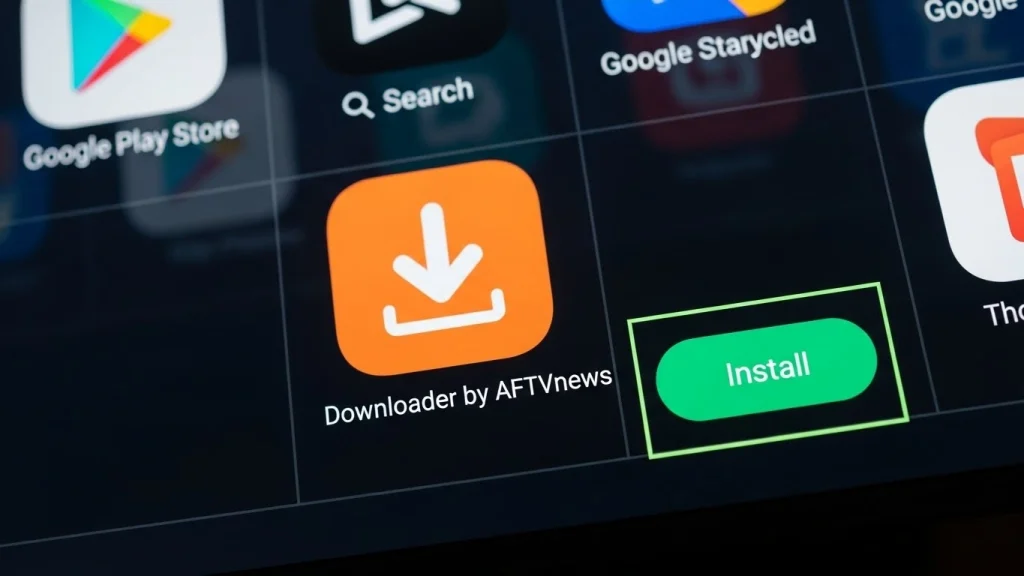
- Go to the search bar (magnifying glass icon) and type “Downloader”.
- Look for the app named “Downloader by AFTVnews” (it has an orange icon).
- Click Install or Get.
Enable “Unknown Sources”
Android TVs have a security setting that blocks apps from outside the Play Store. We need to turn this off temporarily.
- Go to your TV’s Settings (gear icon).
- Scroll down to Device Preferences (or “System”).
- Select Security & Restrictions or just Security.
- Click on Unknown Sources.
- Find the Downloader app and switch the toggle to ON.
Note: On some newer Android TV versions, you might need to click on “Build Number” 7 times in the “About” section to unlock Developer Options first.
Download and Install the APK
Now that your TV is ready, let’s get the app.
- Open the Downloader app you just installed.
- If asked, click Allow to give permissions.
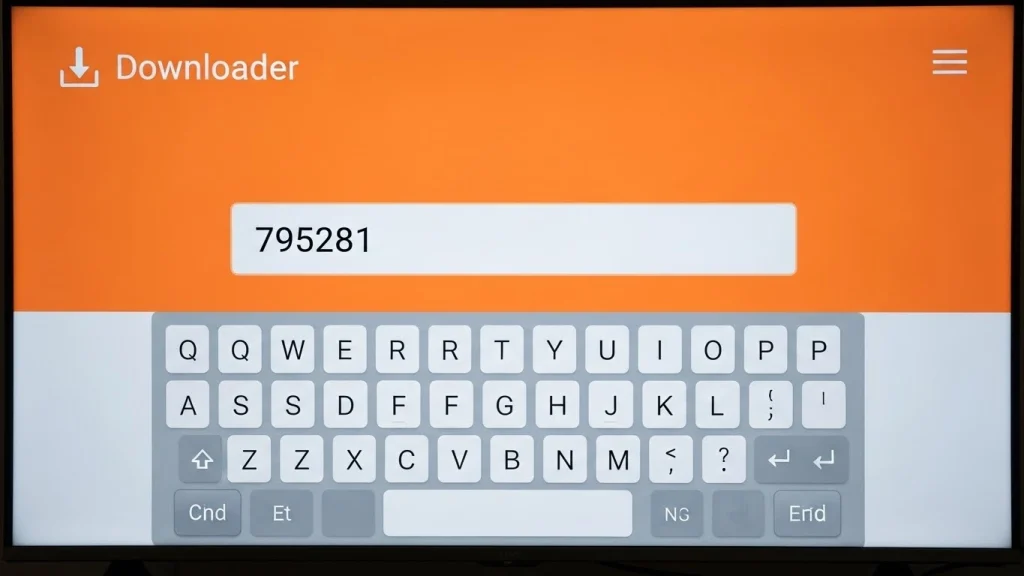
- In the URL box, type this short code:
- Click Go. The download will start immediately.
- Once finished, click Install.
- Wait a few seconds, then click Done (do not click Open yet).
Clean Up Storage
This step is optional but highly recommended.
- After clicking “Done,” you will be back in the Downloader app.
- Click the Delete button to remove the installation file.
- Click Delete again to confirm.
Important: Use a VPN
When using third-party streaming apps, your privacy is critical. Your Internet Service Provider (ISP) can see everything you stream, which can lead to throttling. I strongly recommend using a reliable VPN (like ExpressVPN or NordVPN) to hide your activity and unlock geo-restricted content.
Final Thoughts
You are all set! You can now go to your “Apps” section, find the HDO Box icon, and launch it. You will instantly have access to thousands of movies and TV shows in high definition.
If you found this guide on how to Install HDO Box on Android TV helpful, enjoy your movie night!