HDO Box Subtitles Not Working? How to Fix Sync and Missing Captions
It’s one of the most frustrating moments for any streaming enthusiast: you’ve found the perfect movie or TV show on HDO Box, the video quality is great, but the moment you hit play, the crucial subtitles are either **completely missing** or **hopelessly out of sync**. You know exactly how it feels when the dialogue is miles ahead or behind the text on screen. If you’re currently facing a situation where HDO Box subtitles not working, you’re not alone, and there’s no need to panic.
This comprehensive, step-by-step troubleshooting guide will help you diagnose and fix both of the most common subtitle problems—missing captions and sync errors—so you can get back to uninterrupted viewing right away.
1. Phase 1: Fixing Missing or Unavailable Subtitles
If you are seeing absolutely no captions appearing on your screen, the problem is usually a simple setting or source selection issue. Start with these solutions:
Check 1: Confirm Subtitles Are Selected
Many users overlook the most basic step. Since HDO Box often pulls content from various external sources, you must manually ensure a subtitle track has been loaded.
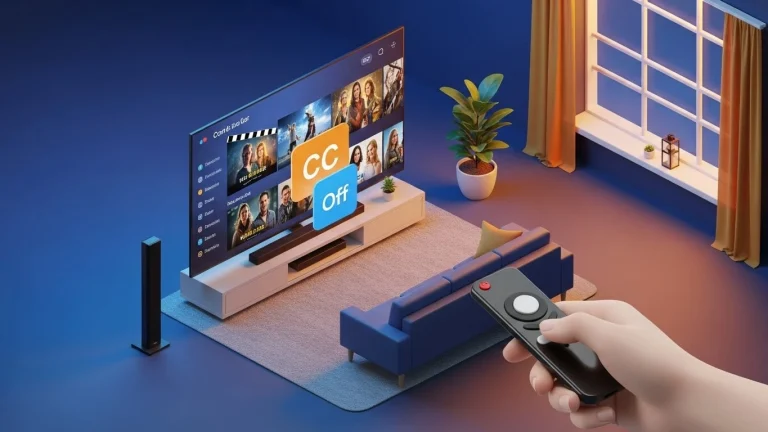
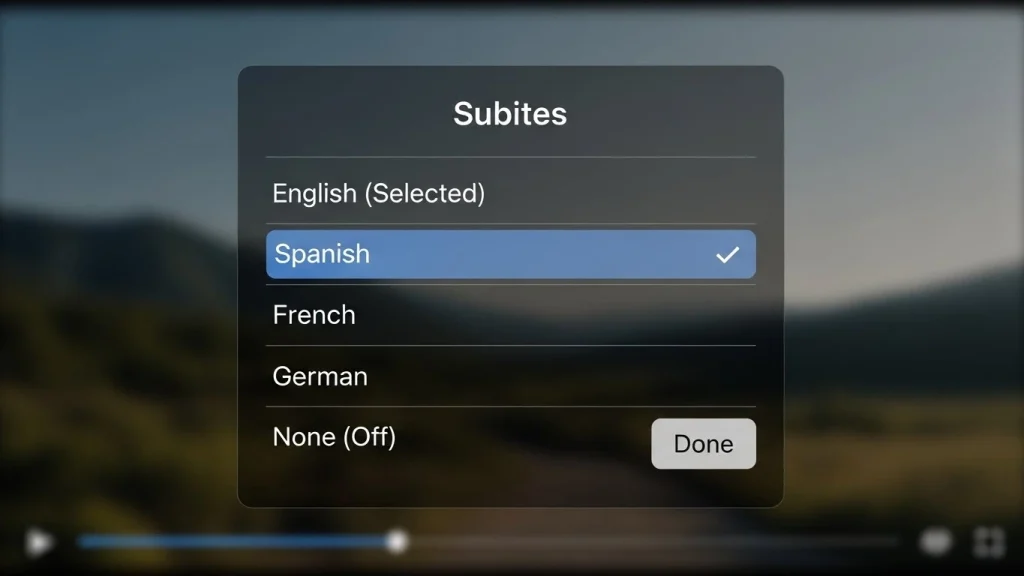
- **During Playback:** Look for a gear icon, three dots, or a closed-caption (CC) symbol on the screen, usually in the lower corner.
- **Select Language:** Tap or click this icon and confirm that a specific subtitle track (e.g., English) is selected. If it says “Subtitles Off” or “None,” switch it to your desired language.
Check 2: Try a Different Source/Link (The Server Fix)
The vast majority of HDO Box’s content issues, including missing subtitles, stem from the specific server link you are using. If the chosen link does not have an associated subtitle file, you won’t see captions.
- **Stop Playback:** Exit the current stream back to the main content page.
- **Select New Source:** Choose a different link or server option for the same movie or episode.
- **Relaunch:** Start the video using the new source. This often forces the application to load a fresh set of subtitle files, resolving the “missing” problem instantly.
Check 3: Switch the External Media Player
HDO Box relies on external video players (like Drama Player or VLC) to handle playback. If the default player is glitching, switching to an alternate player can force a successful subtitle load.
- **Access Settings:** Go into the main HDO Box settings or the in-player settings menu.
- **Change Default Player:** Switch the default media player to an alternative you have installed (like VLC, if available).
- **Test Playback:** Relaunch the content using the new player to see if the subtitles appear.
2. Phase 2: Resolving Subtitle Sync Issues
If your captions are appearing but are either significantly too early or too late, you have a sync problem. This requires a quick, in-player timing adjustment.
The Universal In-Player Sync Adjustment
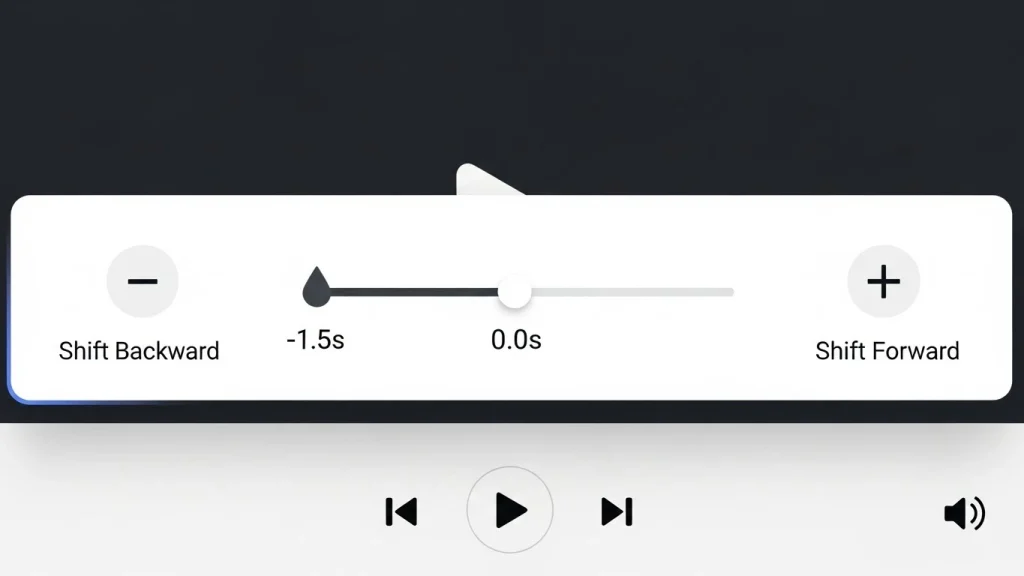
The best fix for out-of-sync subtitles is using the built-in time-offset feature available in almost all third-party media players. This allows you to shift the text to match the audio.
- **Access Player Settings:** While the video is playing, open the menu (look for the gear icon, wrench icon, or subtitle symbol).
- **Find the Offset Feature:** Look for an option labeled **Subtitle Delay**, **Subtitle Offset**, or **Timing Adjustment**.
- **Adjust the Time:**
- If the subtitles are appearing **TOO LATE** (dialogue finishes before the text shows up), use a **negative offset** (e.g., **-0.5 seconds**).
- If the subtitles are appearing **TOO EARLY** (text appears before the dialogue), use a **positive offset** (e.g., **+0.5 seconds**).
- **Fine-Tune:** Make small adjustments (0.1 to 0.5 seconds) and listen carefully until the text matches the speaker’s mouth movements.
The Quick Fast-Forward/Rewind Trick
Sometimes, the sync glitch occurs simply because the app is resuming from a previous pause or due to network buffering.
- **The Fix:** Simply **rewind the video 10-15 seconds** and then immediately press play. This forces the media player to re-read the audio and subtitle tracks from a stable point, often snapping them back into synchronization.
3. Phase 3: Advanced Device and App Troubleshooting
If the above in-app fixes fail, the problem may lie with the application itself or your device. These steps act as a system reset for HDO Box.
Solution 1: Clear the HDO Box Cache
Cached data can become corrupted over time, leading to playback instability and subtitle errors.
- Navigate to your device’s **Settings** (e.g., Android Settings, Firestick Settings).
- Go to **Applications** or **Apps**.
- Find and select the **HDO Box** application.
- Select **Clear Cache**. (Do *not* select Clear Data unless you are willing to log in again and lose your watch history).
- Relaunch HDO Box and test the subtitles.
Solution 2: Update the App and External Player
Running outdated software is a common cause of stability issues. Developers frequently release updates to fix known bugs, including subtitle glitches.
- Ensure both your **HDO Box app** and any associated external player (like Drama Player) are updated to the latest available versions.
- If you can’t find an update, try **uninstalling and reinstalling** the app to ensure you have a clean, current installation.
Solution 3: Power Cycle Your Streaming Device
When all else fails, a simple reboot can clear memory and processes that are interfering with the app’s performance.
- **Unplug** your streaming device (Firestick, Android Box, etc.) from the power outlet.
- Wait **60 seconds**.
- Plug it back in and allow it to fully boot up before launching HDO Box.
Conclusion
The vast majority of users who face the frustrating problem of **HDO Box subtitles not working** can resolve the issue by either switching the content source or using the in-player subtitle offset setting. By following these three phases of troubleshooting, you can systematically eliminate the possible causes and ensure your captions are present and perfectly synchronized.
Enjoy your viewing!
Do you have another streaming issue you need help troubleshooting, such as buffering or “Parsing Errors” on HDO Box? Find community support on Streaming Help Forums.