How to Fix HDO Box Buffering Issues: 7 Tricks for Smooth Streaming
There is nothing worse than the “spinning circle of death” right at the climax of a movie. You have the popcorn ready, the lights are dimmed, but HDO Box Buffering keeps freezing every 10 seconds. It’s frustrating, but before you blame your internet provider, you should know that 90% of the time, the issue lies within the app settings or your device’s cache.
If you are tired of laggy streams, you are in the right place. I’ve tested HDO Box extensively on FireStick and Android, and I’ve compiled the 7 most effective methods to stop buffering instantly.
⚡ The Quick Fix (Try This First)
If your stream is stuttering, the quickest fix is usually to change the server. Don’t rely on “Auto-Play.” Long-press the movie poster, select “Play With…”, and choose a link with a lower file size (e.g., 1080p instead of 4K) or a different provider tag.
1. Clear the App Cache (Not Data!)
Over time, HDO Box stores temporary files to help load images and menus faster. However, when this cache gets too full or corrupted, it actually slows down the app and causes playback lag.
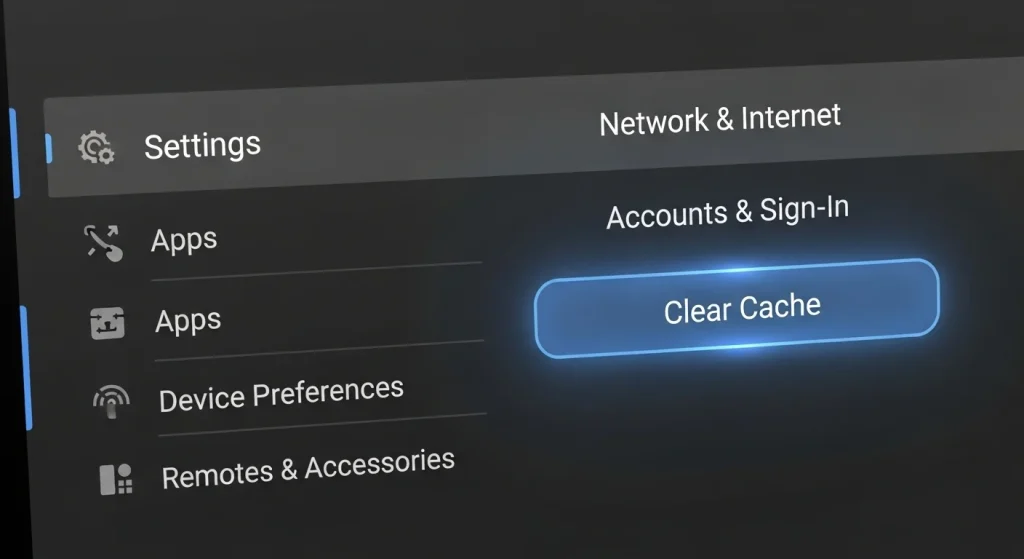
How to do it on FireStick/Android TV:
- Go to your device Settings.
- Select Applications > Manage Installed Applications.
- Find HDO Box in the list.
- Click Clear Cache.
⚠️ Important: Do NOT click “Clear Data.” Clearing data will wipe your watchlist, favorites, and history. Only clear the cache.
2. Optimize Drama Player Settings to avoid HDO Box Buffering
HDO Box uses an external player (usually Drama Player) to render the video. The default settings aren’t always optimized for every device, especially if you are using an older FireStick or a budget Android phone.
You need to change the Decoder.
- Open a movie in HDO Box.
- Tap the screen to bring up the player controls.
- Look for the “HW” or “SW” icon in the corner.
- Switch it: If it is on HW (Hardware), switch to SW (Software), or vice versa.
Why this works: HW decoding uses your device’s chip, which is smoother but can crash on older devices. SW decoding uses the app’s power, which is compatible with more video formats.
3. Use a VPN to Stop ISP Throttling
This is the most common “invisible” cause of buffering. Internet Service Providers (ISPs) can see that you are streaming heavy video data from free movie servers. To save bandwidth, they often intentionally slow down your connection. This is called Throttling.
If your internet speed test shows 100Mbps but HDO Box acts like you have 5Mbps, you are likely being throttled.
The Fix: Turn on a reliable VPN. A VPN hides your activity. Your ISP won’t know you are streaming movies, so they won’t throttle your speed.
4. Force Stop Background Apps
Streaming requires RAM (memory). If you have other apps running in the background—like a browser with open tabs, a file manager, or other streaming apps—HDO Box will struggle to breathe.
On FireStick:
- Hold the Home Button on your remote.
- Go to Settings > Applications.
- Force Stop any app you aren’t using (specifically high-memory apps like Chrome or Kodi).
5. Select a Lower Resolution Link
We all love 4K quality, but 4K files are massive. A 2-hour 4K movie can be 15GB to 20GB. If your WiFi isn’t perfectly stable, it will buffer.
HDO Box usually tries to pick the best quality automatically. Take control manually:
- If you are on a mobile data connection, stick to 720p.
- If your WiFi is shared with other people, stick to 1080p.
- Only use 4K if you have a wired ethernet connection or high-speed 5GHz WiFi.
6. The “Real-Debrid” Solution (For Power Users)
If you want a guarantee of zero buffering and the highest quality audio/video, you need to integrate Real-Debrid.
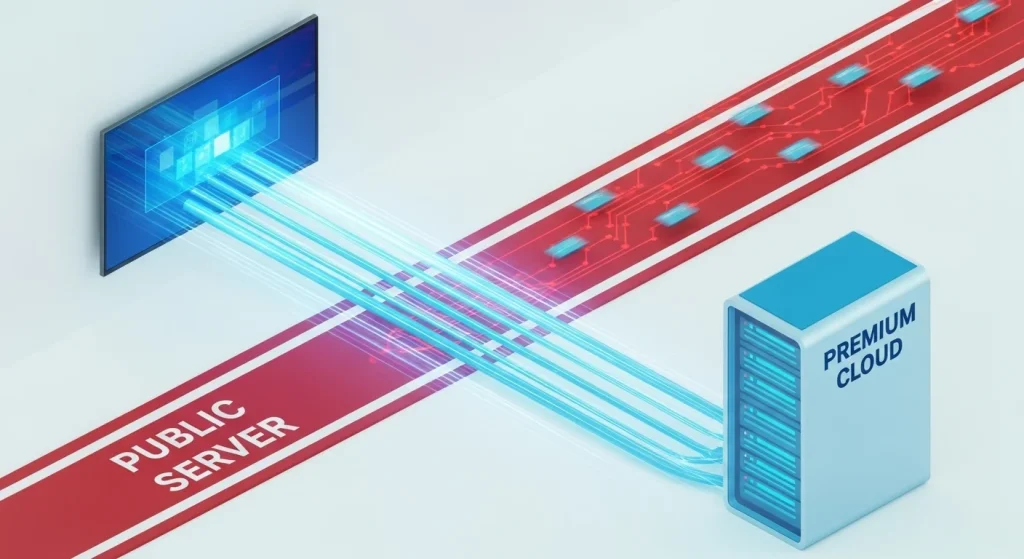
Real-Debrid is a paid service (very cheap, roughly $4/month) that connects HDO Box to premium, high-speed servers. Instead of streaming from a crowded public server, you stream from a private, unrestricted server.
Pro Tip: Using Real-Debrid also gives you access to high-fidelity audio (Dolby Atmos) links that usually aren’t available on free servers.
7. Check for App Updates
HDO Box pushes updates frequently to fix bugs and update their “scrapers” (the tools that find the movie links). If you are running an old version (like version 2.0 when 3.0 is out), the app will struggle to fetch links properly, resulting in timeouts and lagging.
How to check: Usually, HDO Box prompts you to update upon opening. Do not skip this. If you missed it, visit our Home Page to download the latest APK version.
Summary: Your Buffering Checklist
If your movie is lagging right now, follow this order:
- Clear Cache (Takes 10 seconds).
- Reboot your Router (Unplug it for 30 seconds).
- Switch Player Decoder (SW vs HW).
- Turn on your VPN.
Do you have another trick that fixed your HDO Box lag? Let me know in the comments below so we can help the community!