How to Easily Cast HDO Box to Chromecast (Step-by-Step)
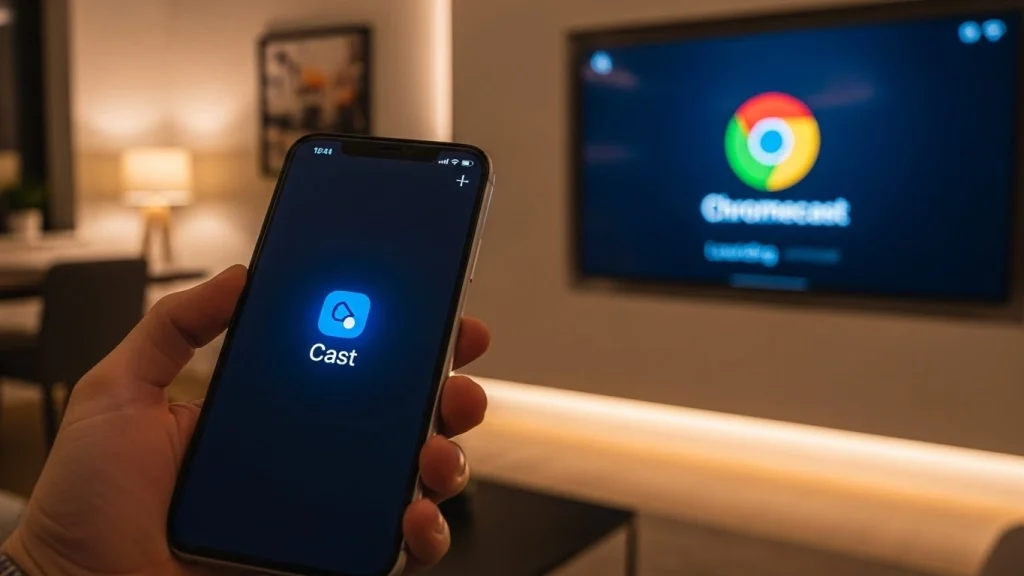
Watching the latest blockbusters on your phone is convenient, but nothing beats the experience of seeing high-definition content on a big TV screen. While the app interface is great on mobile, many users struggle when they try to move that viewing experience to their living room. If you are looking for a way to easily cast HDO Box to Chromecast, you have come to the right place.
Below, we cover the most reliable methods to get your media from the small screen to the big screen without lag or buffering.
Why Native Casting Sometimes Fails
Before jumping into the solutions, it is important to know why you might be facing issues. HDO Box is a third-party streaming application. Unlike YouTube or Netflix, its native casting button can sometimes be buggy depending on the version of the player you are using or the specific codec of the video file.
Because of this, the best approach often involves using a dedicated casting app or screen mirroring.
Method 1: Use “Web Video Caster” (Most Reliable)
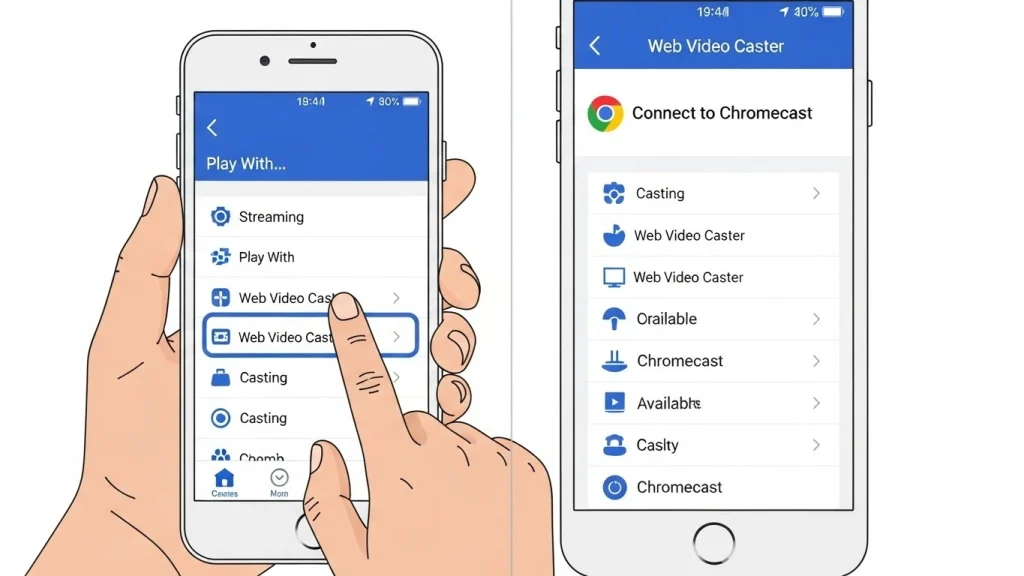
This is widely considered the best method for third-party streaming apps. It acts as a bridge between HDO Box and your Chromecast, handling the video stream much better than the default player.
1. Download the App
Go to the Google Play Store or Apple App Store and download Web Video Caster.
2. Open HDO Box
Navigate to the movie or TV show you want to watch within the HDO Box application.
3. Select ‘Play with External Player’
When you click play, look for the option to play with an external player. If prompted, select “Web Video Caster.”
4. Connect & Enjoy
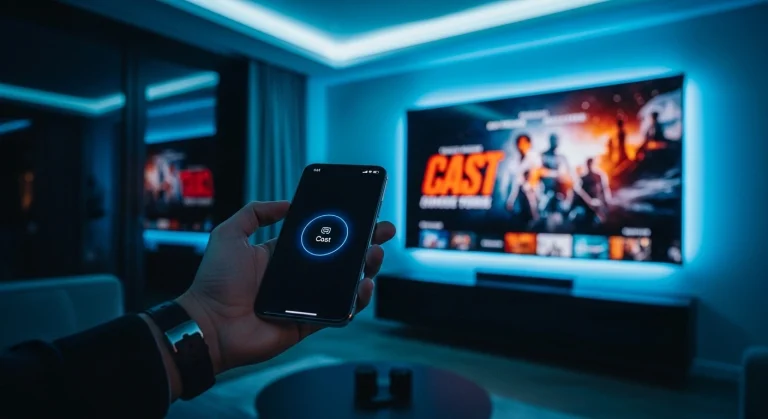
The Web Video Caster app will open. Tap the “Cast” icon and select your Chromecast device. The video will load on your TV.
Method 2: Google Home Screen Mirroring
If the video player method feels too technical, you can simply mirror your entire phone screen. This is less battery-efficient but works 100% of the time.
- Ensure your phone and Chromecast are on the same Wi-Fi network.
- Open the Google Home app on your phone.
- Tap on your Chromecast device icon.
- Select “Cast my screen” at the bottom.
- Open HDO Box and play your video in full-screen mode.
Steps to Easily Cast HDO Box to Chromecast
If you prefer using the default capabilities without external apps, you can try this direct method. Note that this requires the HDO Box internal player to recognize your casting device immediately.
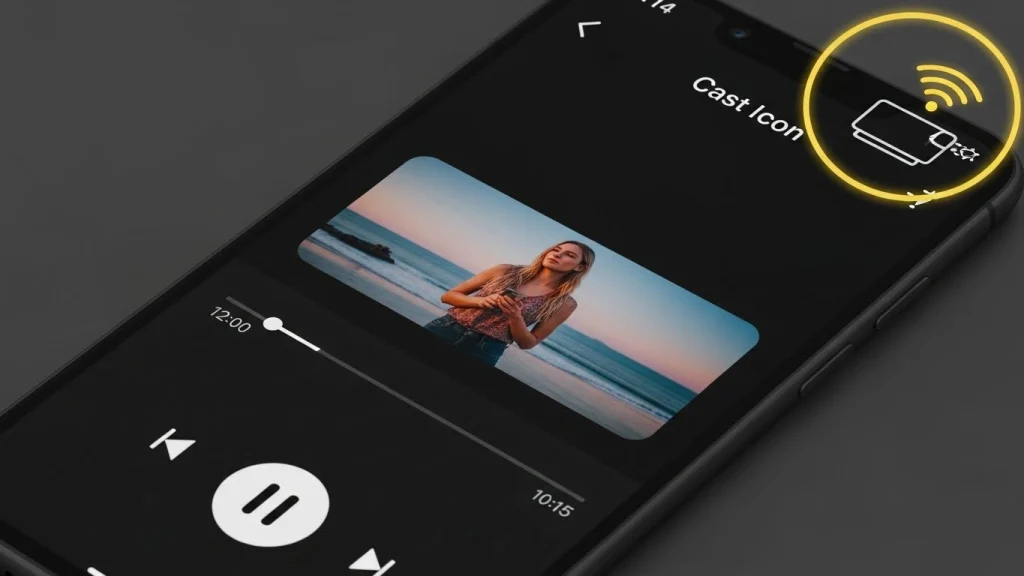
**Note:** If the icon doesn’t appear, revert to Method 1. Third-party apps often struggle to “handshake” directly with Chromecast.
Troubleshooting Common Issues
Black Screen?
This is usually a copyright (DRM) issue. Switching to **Method 1 (Web Video Caster)** usually fixes this immediately.
Buffering/Lag?
Ensure your Chromecast is powered by a wall outlet, not just the TV’s USB port, for better performance.