How to Cast HDO Box to Smart TV Using Web Video Caster (No Lag)

Streaming your favorite movies and shows on a smartphone is convenient, but nothing beats the immersive experience of a big screen. If you are using the HDO Box app, you might have noticed that direct casting can sometimes be hit-or-miss depending on your hardware.
The most reliable way to cast HDO Box to Smart TV without experiencing stuttering or connection drops is by using a bridge application like Web Video Caster. This method bypasses common compatibility issues, allowing you to enjoy 1080p content with zero lag.
Why Use Web Video Caster for HDO Box?
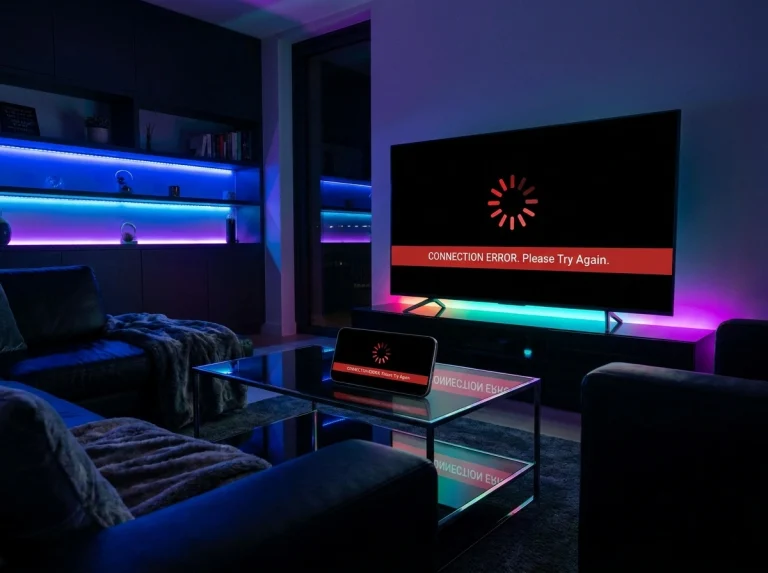
Most users try to use the default “Cast” icon within streaming apps, only to find that their TV isn’t detected or the video buffers every five seconds. Web Video Caster acts as a powerful intermediary. It doesn’t just mirror your screen (which consumes massive battery and causes lag); it grabs the direct video link from HDO Box and sends it to your TV’s native player.
⚡
Reduced Latency
Phone stays cool as TV handles the stream.
💬
Subtitle Support
Easily search or upload external SRT files.
📺
Broad Support
Works with DLNA, Roku, Samsung, and LG.
Prerequisites for a Lag-Free Experience
Before we dive into the steps, ensure your setup is optimized for a smooth connection. Even the best software can’t fix a poor hardware foundation.
- Stable Wi-Fi: Both devices must be on the same network. Use 5GHz for best results.
- App Updates: Keep HDO Box updated to the latest version.
- The App: Download the official Web Video Caster from your app store.

Step-by-Step: How to Cast HDO Box to Smart TV
1. Prepare the Web Video Caster App
Open Web Video Caster on your phone. Tap the “Cast” icon at the top right and select your Smart TV from the list. Wait for the icon to turn solid white.
2. Navigate HDO Box
Open HDO Box and pick your movie. Click “Play.” When the menu pops up, select “Play with External Player” and choose Web Video Caster.
3. Link the Stream
The caster app will reappear. It will “sniff” the video URL. Select the highest resolution link (usually the first one) to begin the TV playback.
Troubleshooting Common Lag Issues
Even when you cast HDO Box to Smart TV, local interference can sometimes cause hiccups. If you experience buffering, try these quick fixes:
- Change Video Server: Switch between Server 1, 2, or 3 in HDO Box.
- Clear Cache: Wipe the temporary data in your phone’s App Settings.
- Router Proximity: Move closer to the router or use a Wi-Fi extender.
- Battery Optimization: Disable “Battery Saver” for the Caster app.

Advanced Tips for the Best Experience
To truly get the most out of your setup, consider the “Route Video through Phone” option within Web Video Caster settings only if your TV natively struggles with certain file formats. However, for a “No Lag” experience, it is usually better to let the TV fetch the stream directly.
Conclusion
Learning how to cast HDO Box to Smart TV effectively changes the way you consume media. By using Web Video Caster, you eliminate the frustration of incompatible formats and laggy screen mirroring.