Fixing the Black Screen Issue: What to Do When Audio Plays but Video Doesn’t
It is one of the most frustrating experiences in the digital age: you settle in to watch a movie, join a video call, or start a game, only to be met with a void. You can hear every footstep, every linioe of dialogue, and every note of the background score perfectly, but your display remains a stubborn shade of obsidian. Fixing the Black Screen Issue is rarely about one single “magic button” because the symptom—audio without video—can be caused by anything from a loose HDMI cable to a deep-seated software conflict within your operating system.
When your hardware is clearly “talking” (since you can hear the audio), the breakdown is happening in the translation of data into imagery. This guide will walk you through the logical steps to diagnose and resolve this “black screen, audio on” phenomenon across various devices.
Hardware Check: The Physical Connection
Before diving into complex software settings, we must rule out the physical path the video signal takes.
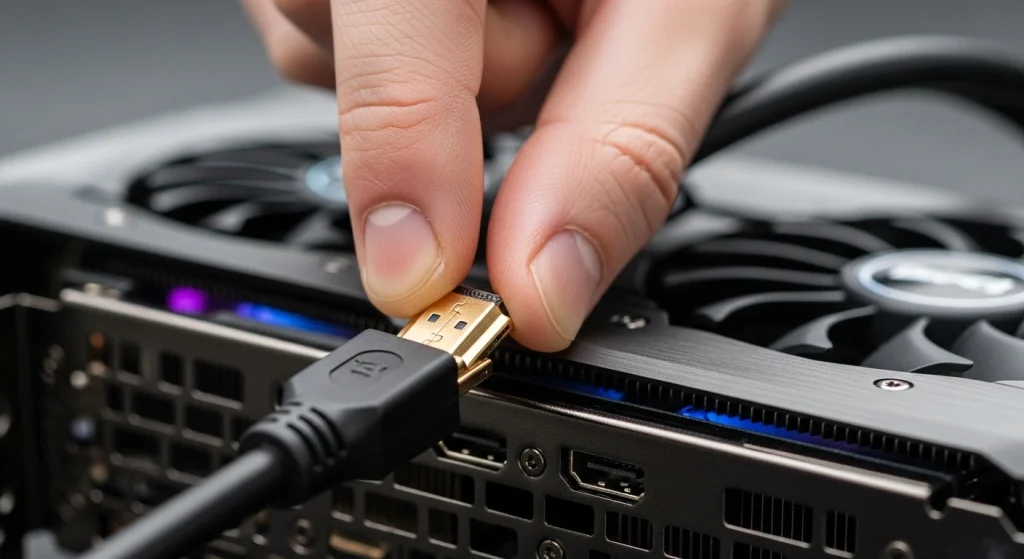
- Check Your Cables: If you are using an external monitor or a TV, the HDMI or DisplayPort cable is the first suspect. These cables can partially fail, where the pins responsible for audio remain intact while the high-bandwidth video pins lose connection.
- The “Handshake” Reset: Modern displays use HDCP (High-bandwidth Digital Content Protection). Sometimes, the “handshake” between your player and your screen fails. Simply power-cycling both devices (unplugging them from the wall for 60 seconds) can force a fresh handshake.
- Test a Different Port: If your GPU or TV has multiple inputs, swap them. A single dead port can often mimic a total system failure.
Fixing the Black Screen Issue via Software & Drivers
If your hardware is secure, the issue is likely residing in the “brain” of your device. This is where the communication between your media player and your graphics hardware has broken down.
Update or Roll Back Graphics Drivers
Your Graphics Processing Unit (GPU) is the engine that renders video. If the driver is outdated or corrupted, it may fail to draw the frames even if it handles the audio stream just fine.
For Windows Users: Right-click Start > Device Manager > Display adapters > Right-click GPU > Update driver.
Disable Hardware Acceleration
This is a common culprit for black screens in web browsers like Chrome or apps like Discord. Hardware acceleration shifts the heavy lifting of video decoding from your CPU to your GPU. If there is a compatibility glitch, the video will fail to render.
Codecs and Media Player Conflicts
Sometimes the problem isn’t your computer, but the specific file or app you are using. A “codec” is the language used to compress and decompress video. If your system understands the audio codec but not the video codec, you get sound without a picture.
Try VLC Media Player: If you are trying to play a local file, switch to VLC. It comes pre-loaded with almost every codec known to man and can often bypass the errors found in default Windows or Mac players.
Advanced Troubleshooting: Display Settings and BIOS
If the basics haven’t worked, we need to look at how your OS manages its workspace.
Adjust Resolution and Refresh Rate
If your computer is sending a signal that your monitor cannot support (for example, trying to push 4K resolution to a 1080p screen), the monitor may simply give up and show black.
The Power Settings Glitch
On laptops, “Link State Power Management” can sometimes put the video bus to sleep to save battery, even while the audio continues. Go to your Power Options > Change advanced power settings > PCI Express and turn off power savings.
Summary of Action Steps
When Fixing the Black Screen Issue, remember to work from the outside in:
1 Check Cables & Ports first.
2 Update or Rollback GPU Drivers.
3 Disable Hardware Acceleration.
4 Adjust Power & Resolution settings.
By following this hierarchy, you avoid the headache of reinstalling your entire operating system for what might just be a dusty HDMI port.