How to Download Movies from HDO Box for Offline Viewing
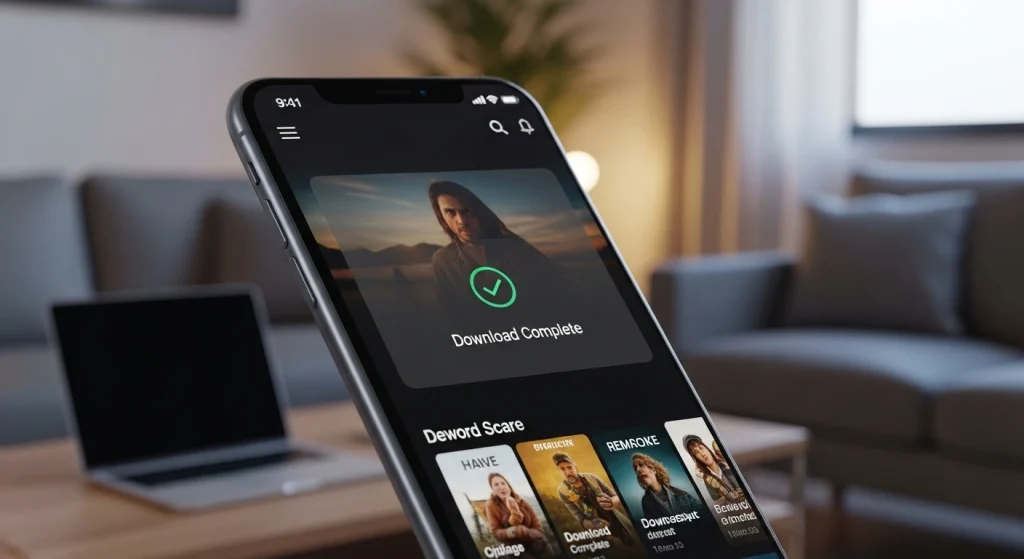
Finding time to sit down and watch a film without interruptions is a luxury, but a stable internet connection isn’t always guaranteed. Whether you are prepping for a long flight, a remote camping trip, or simply dealing with spotty Wi-Fi, knowing how to Download Movies from HDO Box is a game-changer. HDO Box has quickly become a favorite for streaming enthusiasts due to its massive library and sleek interface, but its offline capabilities are what truly make it a versatile tool for entertainment on the go.
Why You Should Download Movies from HDO Box
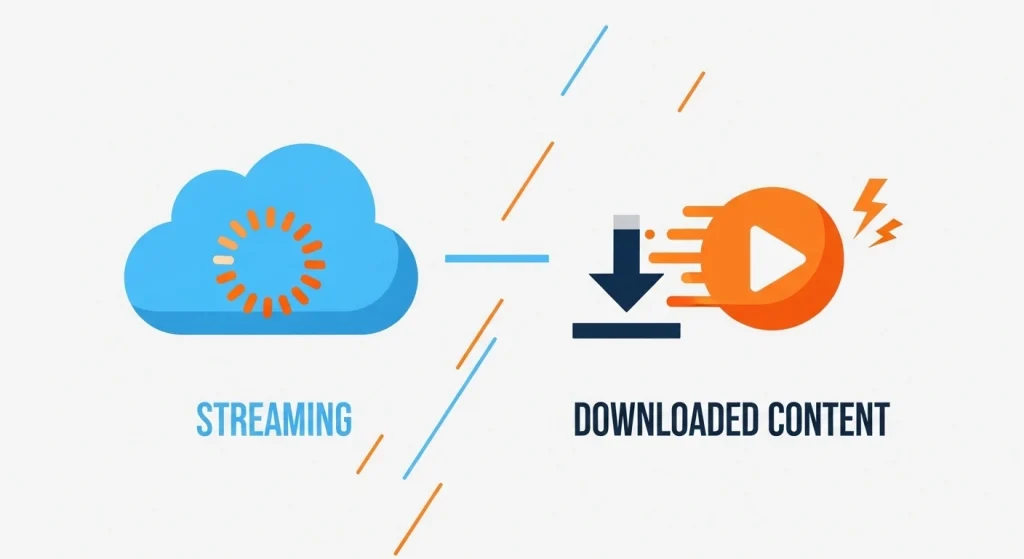
Streaming in high definition is great, but it consumes a significant amount of data and requires a consistent bandwidth. When you choose to download content, you eliminate the risk of buffering or losing your stream mid-scene.
For users on limited data plans, downloading via a home Wi-Fi network before heading out can save significant costs. Furthermore, having a local copy of your favorite HD titles ensures that your viewing experience remains crisp and uninterrupted, regardless of your surroundings.
Prerequisites for a Smooth Download Experience
Before you start the process, there are a few things you need to ensure your device is ready:
- Storage Space: High-definition movies can range from 1GB to 5GB. Ensure your phone or tablet has enough internal or SD card space.
- Stable Connection: Use a high-speed Wi-Fi connection to prevent file corruption during the download process.
- App Version: Ensure you are using the latest version of HDO Box for optimized features and bug fixes.
Step-by-Step Guide: How to Download Movies from HDO Box
1 Locate Your Content
Open the HDO Box app and use the search bar or the category filters (Action, Comedy, Drama, etc.) to find the movie you wish to save. Tap on the movie poster to enter the details page.
2 Choose the Right Source
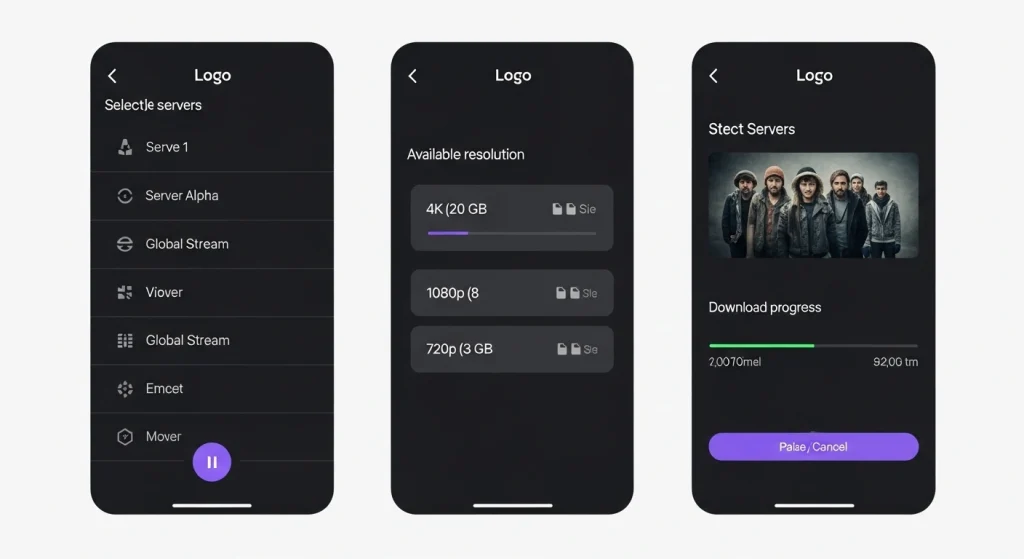
Once on the movie page, you will see a list of available servers or “links.” It is usually best to select a link that specifies “1080p” or “720p” for the best balance between quality and file size.
3 Initialize the Download
Look for the download icon (usually a downward-facing arrow). In many versions of the app, you may need to click the “Play” button first, which then prompts a choice between “Play” or “Download.” Select the download option.
4 Select a Downloader
HDO Box often works best when paired with a dedicated download manager like 1DM or ADM. If the app asks which tool you’d like to use, selecting a third-party manager can speed up the process.
Managing Your Offline Library
Once the download is complete, you can usually find your files within the “Downloads” section of the app or in your device’s file manager under the “HDO” or “Movies” folder.
Pro Tip: To keep your device running smoothly, delete movies after watching. This ensures you always have room for the next big release.
Troubleshooting Common Download Issues
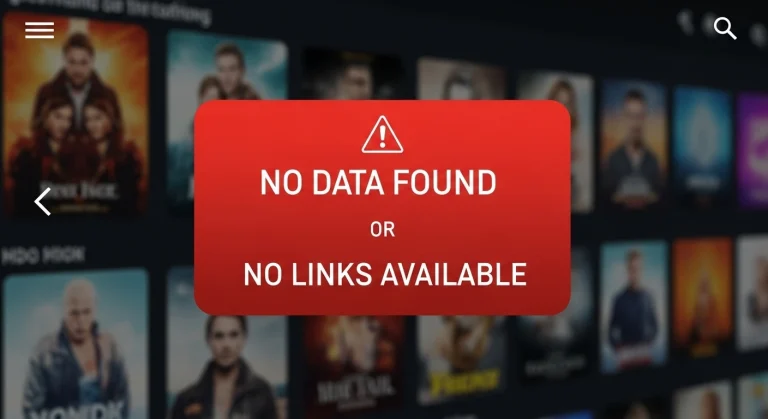
Link Dead
If a download fails immediately, try a different server link. Some links are optimized only for streaming.
App Crashing
Clear the cache of the HDO Box app in settings and restart your mobile device.
Safety and Best Practices
Privacy Matters
When downloading or streaming, using a Virtual Private Network (VPN) helps protect your IP address and ensures your data remains private from third parties.
- Avoid suspicious pop-ups
- Don’t share personal data on external redirects
- Keep your OS security updated
Conclusion
The ability to Download Movies from HDO Box transforms your device into a portable cinema. By following the steps outlined above—ensuring adequate storage, using a download manager, and staying updated—you can enjoy premium entertainment anywhere in the world. No more buffering, no more data overages—just pure, high-definition cinema at your fingertips.