Fix HDO Box Arabic Subtitles Not Working
Streaming your favorite movies and TV shows on HDO Box is an incredible experience until you realize the captions aren’t cooperating. If you are trying to stream with hdo box arabic subtitles and facing issues like text not rendering correctly, missing files, or timing mismatches, you are not alone.
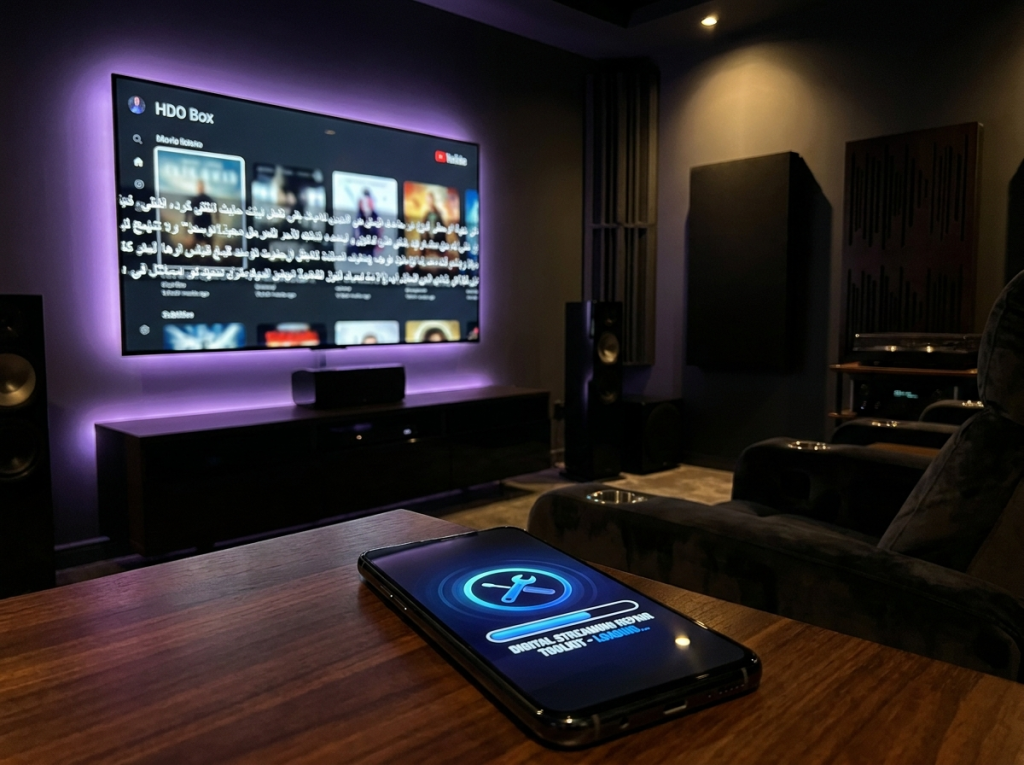
Subtitle errors are incredibly common on third-party streaming applications, but they are usually quite easy to resolve. In this guide, we will break down the exact reasons why your Arabic captions are failing to load and provide a clear, step-by-step walkthrough to get them working perfectly without dropping frame rate or ruining your watch party.
Fast Fix Summary
Most failures of hdo box arabic subtitles stem from the built-in media player failing to support Arabic UTF-8 text direction formatting. Transitioning to external engines like VLC Media Player solves 95% of issues instantly.
Why Are My Arabic Subtitles Broken?
Before diving into the technical fixes, it helps to understand what is causing the breakdown behind your viewing screens. Arabic script reading layout uses distinctive right-to-left configurations. The common culprits blocking your sync process typically lie inside one of these areas:
Character Encoding
If the default player doesn’t deploy UTF-8 encoding support, Arabic text transforms into illegible structural lines and geometric boxes.
Outdated App Builds
HDO Box updates scraper code modules frequently. Using older apps breaks the bridge between live streaming engines and caption APIs.
Default Player Glitches
The default player is optimized strictly for general stream load speed, lacking advanced linguistic engines.
Step-by-Step Guide to Fix HDO Box Arabic Subtitles
Check for Application Updates
Open your source downloader application (or visit the developer website) to guarantee your device executes the newest HDO Box framework. App developers configure active patches routinely to re-index scrapers whenever the system’s translation provider changes paths.
Integrate an External Media Player
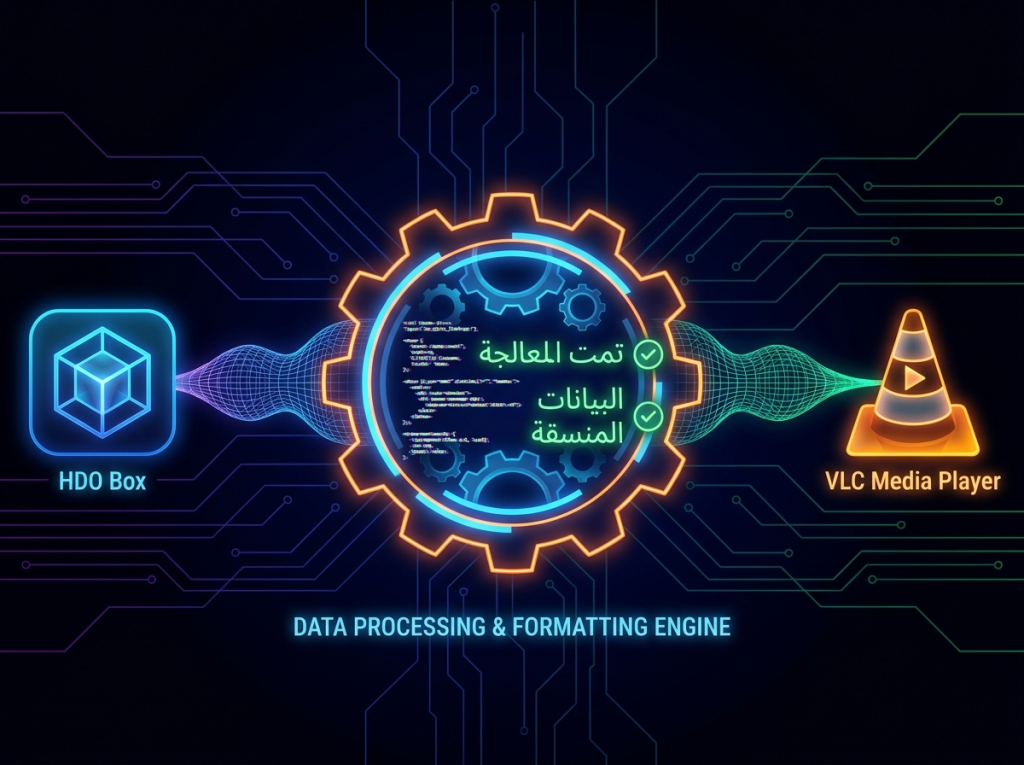
Since built-in engines lack encoding maps for complex typography, routing play paths outward is the key fix. Navigate into HDO Box Settings, scroll to media player config, and change the engine to VLC Media Player or MX Player. These standalone services have built-in renderers built for diverse language symbols.
If VLC is not listed, make sure to download it first from your Google Play Store or Firestick Downloader app!
Clear App Cache and Data
Corrupted local data blocks standard layout configuration loading. Access your device’s main Settings panel, go to Apps > HDO Box > Storage, and execute a deep **Clear Cache** command. If translations still block, execute **Clear Data** to refresh the layout framework completely.
Manually Load the Subtitle File
If live scraping links fail to pull translations automatically, bypass standard streams. Download a secure Arabic .srt format translation file from sites like OpenSubtitles. Once VLC plays the title, tap options, choose Load File, and pick your document directly.
Optimizing the Subtitle Settings for Better Readability
Once you successfully mount the correct version of hdo box arabic subtitles, you might find that original sizing dimensions make the letters challenging to read, or letter formatting order feels backwards.
If you switched to VLC Media Player per our recommendation, adjusting the formatting takes mere moments. Go into Preferences > Subtitles within VLC and make sure the active text encoding selector points explicitly to Universal (UTF-8) or Arabic (Windows-1256). To optimize contrast, you can also inject custom text modifications:
Set Text Size to Big: Gives optimal readability on TVs when viewed from a standard sitting couch distance.
Add Dark Box Overlay: Protects white Arabic characters from dissolving when bright background scenes occur.
Default to Force Subtitles: Automatically bypasses default english files, looking for localized Arabic matches on play launch.
Final Troubleshooting Tips
If you have tried all the steps above and are still seeing blank screens where the translations should be, the problem might be tied to the specific streaming link you selected. Different video sources contain distinct index alignments which affect external translation sync metrics.
Try switching to an alternate server link within the HDO Box application interface. Often, a higher-quality stream (like a 1080p source instead of a 720p source) will have a more stable structural layout, making it much easier for external players to pair up the correct timeline file. Additionally, ensuring your device’s primary language settings are toggled correctly can help external players properly recognize right-to-left reading orientations automatically.