How to Turn Off Subtitles on HDO Box: Step-by-Step Guide
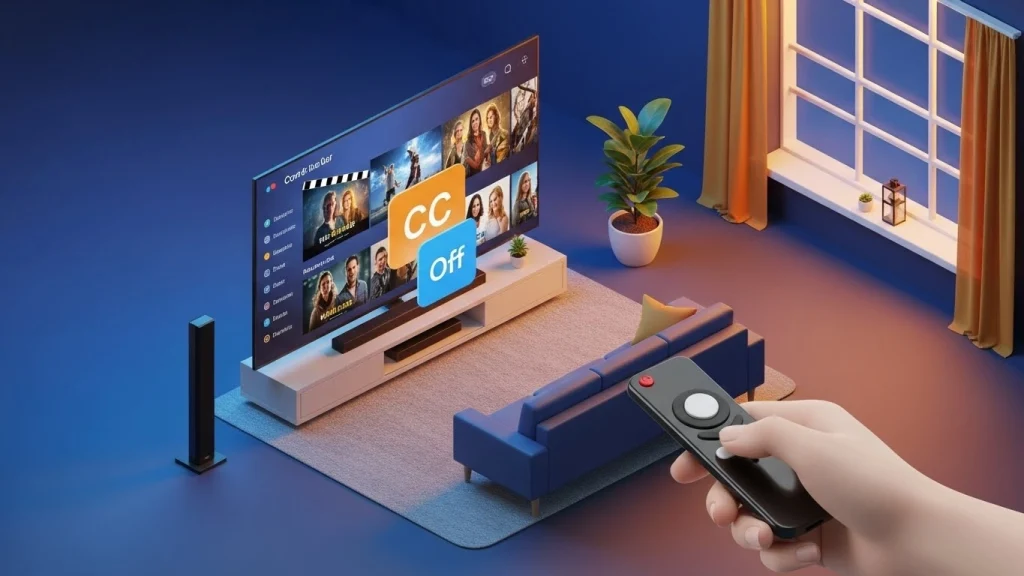
There is nothing quite like settling in for a movie night, only to find that large, distracting captions are covering half the screen. While subtitles are a lifesaver for foreign films or noisy environments, sometimes you just want an unobstructed view of the action. If you are wondering how to turn off subtitles on HDO Box, you aren’t alone. Many users find the player interface a bit tricky at first glance, but the process is actually very straightforward.
In this guide, we will walk you through the exact steps to clear your screen and get back to your favorite shows without the extra text.
Why Users Want to Turn Off Subtitles on HDO Box
The HDO Box app is famous for its massive library and high-definition streams. However, because it pulls from various sources, subtitles are often enabled by default. You might want to disable them if:
- The captions are out of sync with the audio.
- The text size is too large for your screen.
- You prefer a “pure” cinematic experience without distractions.
How to Turn Off Subtitles on HDO Box: The Quick Method
Whether you are using a smartphone, a tablet, or a Firestick, the steps to manage your captions are generally the same within the internal player.
Open Your Video Content
Launch the HDO Box app and select the movie or episode you wish to watch. Click the “Play” button and wait for the stream to initialize.
Access the Player Settings
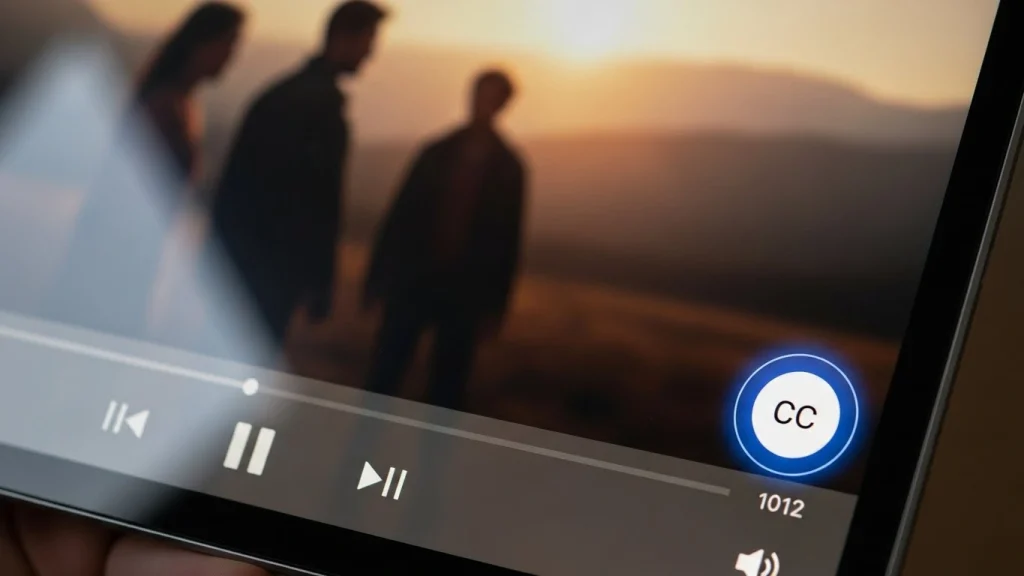
Once the video starts playing, tap anywhere on the screen (or press the “Select” button on your remote). This will bring up the playback overlay, showing the progress bar and control icons.
Locate the Subtitle Icon
Look for a small “CC” icon or a speech bubble icon usually located in the top-right or bottom-right corner of the player interface.
Select “None” or “Off”
Clicking the icon will open a list of available subtitle tracks (English, Spanish, etc.). To remove the text completely, scroll to the top of the list and select “None” or “Turn Off.” The captions should disappear instantly.
Troubleshooting Common Issues
If you find that subtitles won’t go away even after following the steps above, try these quick fixes:
- Hardcoded Subtitles: Occasionally, a specific video source has “hardcoded” subtitles. These are burned into the video file itself and cannot be turned off. If this happens, try selecting a different server or link within the app.
- Clear Cache: If the app UI is freezing when you click the CC icon, go to your device settings, find HDO Box, and Clear Cache to refresh the player’s performance.
Frequently Asked Questions
Can I change the subtitle color in HDO Box?
Yes, in many versions of the HDO Box player, clicking the settings gear icon next to the subtitle selection allows you to change text size, color, and background transparency.
Does HDO Box support external players like VLC?
Yes, if you prefer using VLC or MX Player, you can select “Play with External Player” in the app settings. In those cases, you would use the subtitle controls within those specific apps.