How to Fix Buffering and Slow Streaming at Home
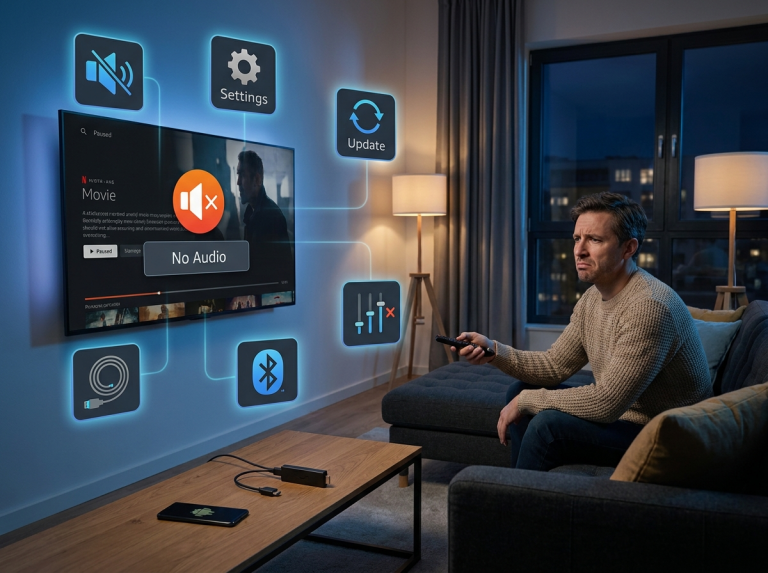
There is hardly anything more frustrating than settling onto the couch for movie night, only to be interrupted by a spinning loading wheel and freezing picture. Whether you are watching live sports, catching up on a favorite series through apps like HDO Box, or streaming a blockbuster movie, lag can ruin the experience instantly. Knowing how to fix buffering issues is vital for anyone looking to enjoy smooth, uninterrupted entertainment at home.
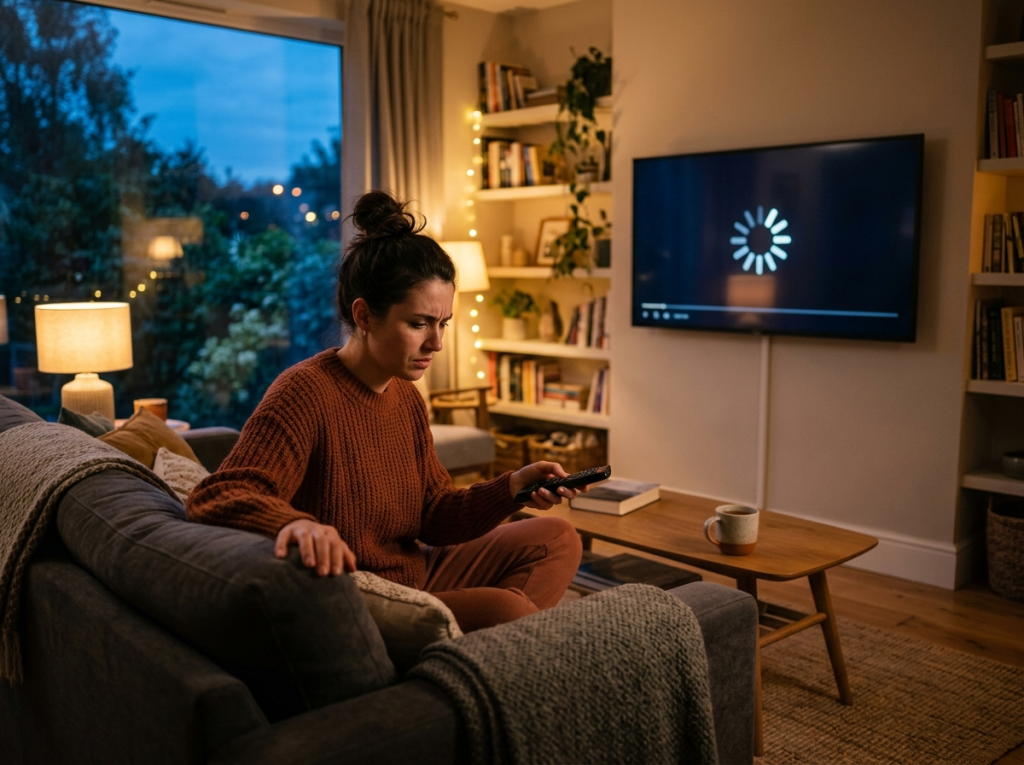
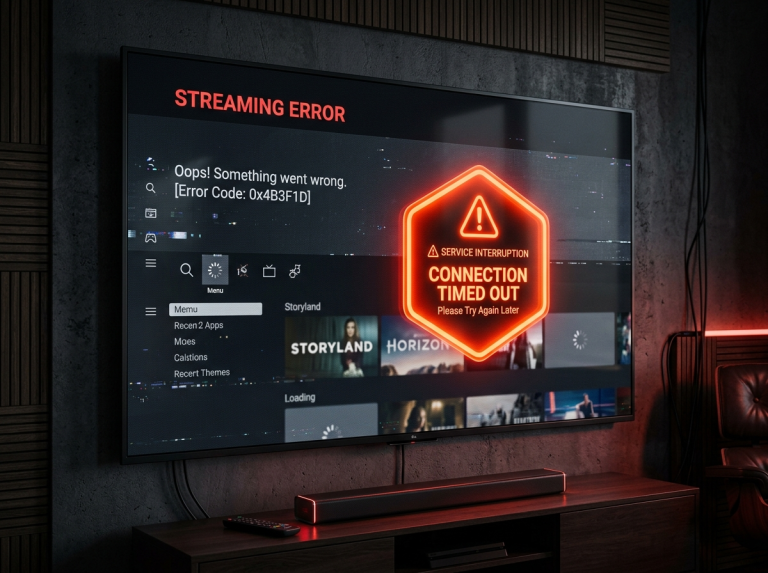
Buffering typically occurs when your internet download speed cannot keep up with the data demands of the video file, or when network congestion slows down communication between your router and streaming device. Fortunately, you don’t need to be a networking engineer to resolve these issues. In this guide, we will walk you through practical, highly effective steps to optimize your setup and eliminate playback interruptions for good.
Run an Internet Speed Test
Before making any hardware changes, you need to know how your network is currently performing. Low bandwidth is the leading cause of poor video playback. Streaming services have specific bandwidth requirements: standard definition typically needs 3 Mbps, high definition requires around 5 Mbps, 4K Ultra HD demands 25 Mbps, and live streaming often requires even more stable throughput.
Connect your computer or phone to your Wi-Fi and run a reputable speed test to check your download speeds. If your results fall far below what your Internet Service Provider (ISP) promises—or below your streaming app’s requirements—your network needs troubleshooting.
Quick Action Checklist
- Action: Disconnect heavy download or background gaming devices while testing to get an accurate baseline of your connection speed.
- Verification: Ensure your download speed consistently hits the recommended threshold for your preferred streaming quality.
Power Cycle Your Modem and Router
Your home network hardware handles a massive amount of data daily. Over time, routers and modems can experience memory leaks, thermal throttling, or minor glitches that degrade performance. A simple power reset clears out temporary cache and establishes a clean connection with your ISP.
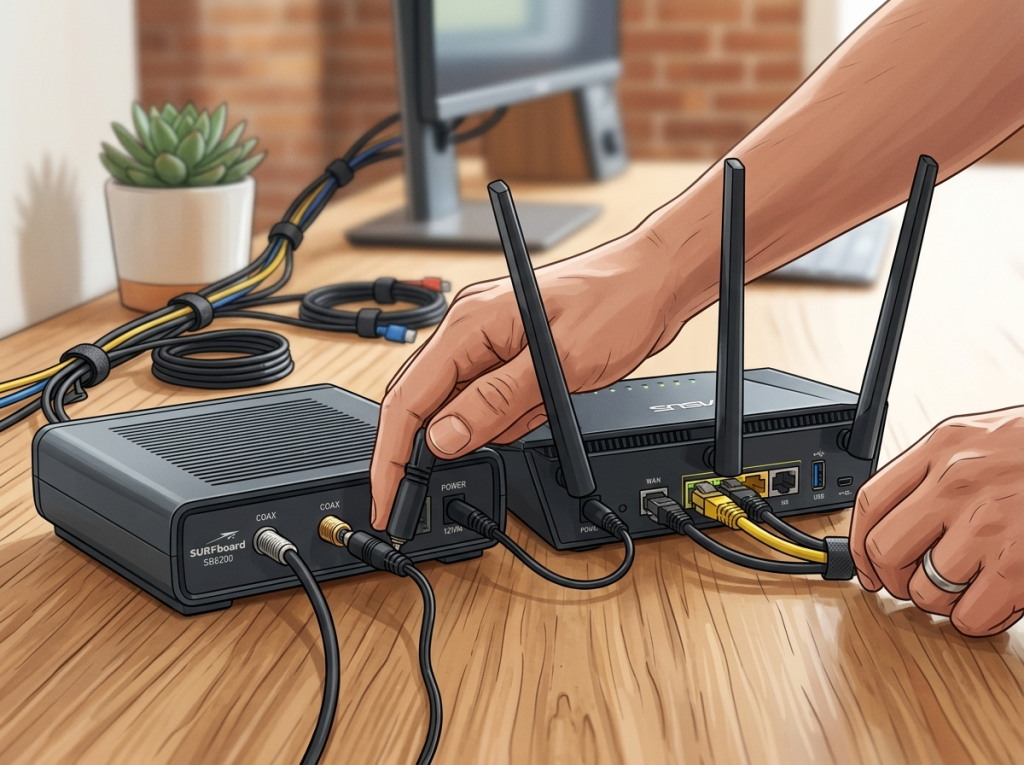
Disconnect Power
Unplug the power cables from both your modem and your wireless router.
Clear Charge
Leave devices unpowered for 30-60 seconds to clear internal memory.
Power On
Plug modem in first, wait for connection lights, then power on the router.
Verification: Reconnect your streaming device and test a video stream to see if playback improves.
Upgrade to a Wired Ethernet Connection
While wireless Wi-Fi is convenient, it is vulnerable to physical interference. Walls, thick doors, household appliances, and competing signals from nearby neighbors can cause packet loss, resulting in sudden video stalls.
If your streaming box, smart TV, or gaming console sits close to your router, plugging in a direct Ethernet cable creates an unhindered, high-speed connection that completely bypasses wireless congestion.
- Action: Connect a reliable Cat6 Ethernet cable directly from an open LAN port on your router into your streaming device.
- Verification: Check your device settings to confirm it recognizes the wired Ethernet connection.
Optimize Your Wi-Fi Bands and Placement
If running a physical wire across your living room isn’t feasible, you can optimize your wireless environment instead. Most modern routers broadcast across multiple frequencies: 2.4 GHz and 5 GHz (along with 6 GHz on newer routers).
The 2.4 GHz band has a wide reach but travels slower and is prone to interference from microwaves and Bluetooth devices. The 5 GHz band offers much faster speeds and less congestion, making it ideal for video streaming, provided your device is close enough to the router.
- Action: Move your streaming device closer to the router or manually connect it to your network’s 5 GHz band.
- Verification: Stream a high-definition video clip to verify that it loads immediately without stuttering.
Clear App Cache and Update Software
Sometimes the issue isn’t your internet connection at all, but rather the software running on your streaming device. Over extended periods of use, applications like Netflix, YouTube, or media centers accumulate cache data that can slow down performance. Additionally, running outdated software can introduce bugs that impair streaming efficiency.
- Action: Access your device or app settings, clear the application cache, and check for any available firmware or software updates.
- Verification: Launch the application fresh and confirm that menus and videos load smoothly.
Conclusion
Constant video lag doesn’t have to ruin your downtime. By testing your internet speeds, power-cycling your network equipment, switching to a wired connection or optimal Wi-Fi band, and clearing out cluttered application caches, you can easily fix buffering issues and reclaim your viewing experience. Start with the basics, work through each step, and enjoy seamless, buffer-free streaming every time.