HDO Box Crashing Black Screen or on Startup
Dealing with streaming app errors can instantly ruin your movie night, especially when your favorite application refuses to cooperate. One of the most frustrating issues users face is running into an unexpected hdo box crashing loop right on startup or getting stuck on a blank screen. Whether you are trying to catch up on a trending series or launch a movie, experiencing sudden freezes and crashes can grind your entertainment to a halt.
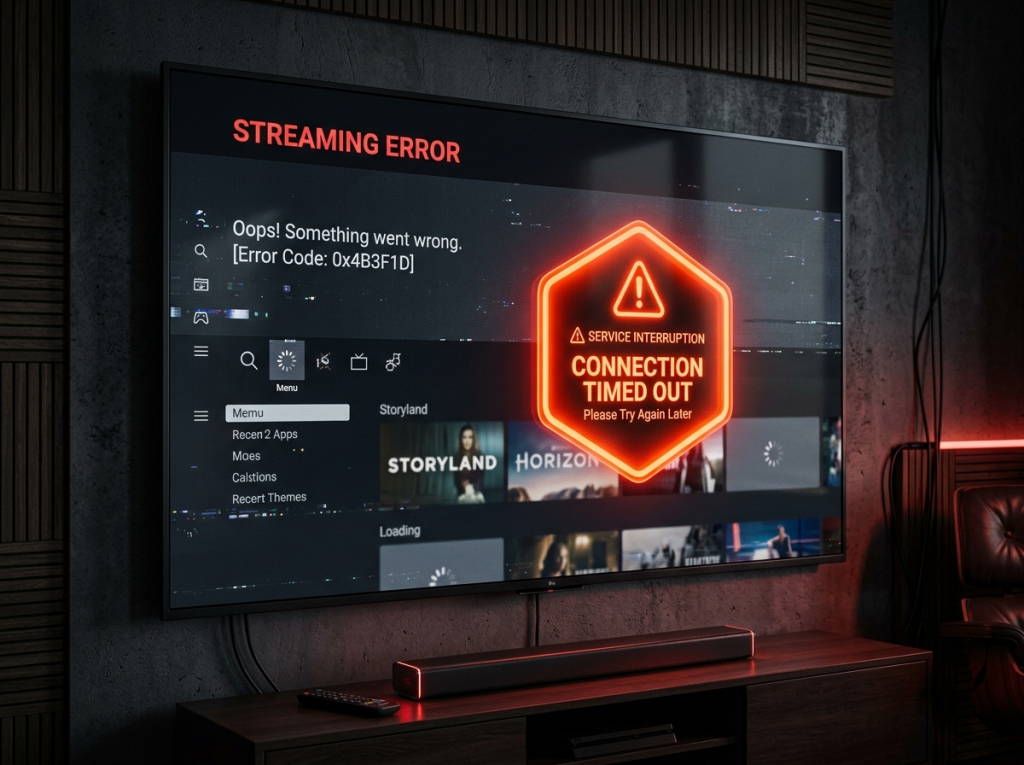
Fortunately, most of these startup failures and display glitches stem from common cache errors, outdated application versions, or temporary device conflicts that you can easily resolve in just a few minutes. In this comprehensive guide, we will walk you through the most effective troubleshooting methods to fix these performance hiccups and get your media player running seamlessly again.
Common Reasons Why HDO Box Keeps Crashing
Before jumping straight into the fixes, it helps to understand what triggers these performance errors. Streaming applications rely heavily on your device’s system resources, stable storage access, and up-to-date software architecture. When something disrupts this balance, errors occur.
Corrupted App Cache
Over time, temporary files accumulate and become corrupted, leading to sudden freezing or force-closing upon launch.
Outdated App Versions
Running an older build of the application can cause compatibility clashes with your streaming device or operating system.
Insufficient Storage
Low internal storage on your streaming stick, Android TV, or mobile device restricts the app from loading necessary files.
Network Interferences
Unstable internet connections during startup can cause timeouts that freeze the user interface completely.
Step-by-Step Solutions to Fix HDO Box Crashing
Clear App Cache and Temporary Data
The quickest and most effective way to resolve startup loops is clearing out corrupted temporary files.
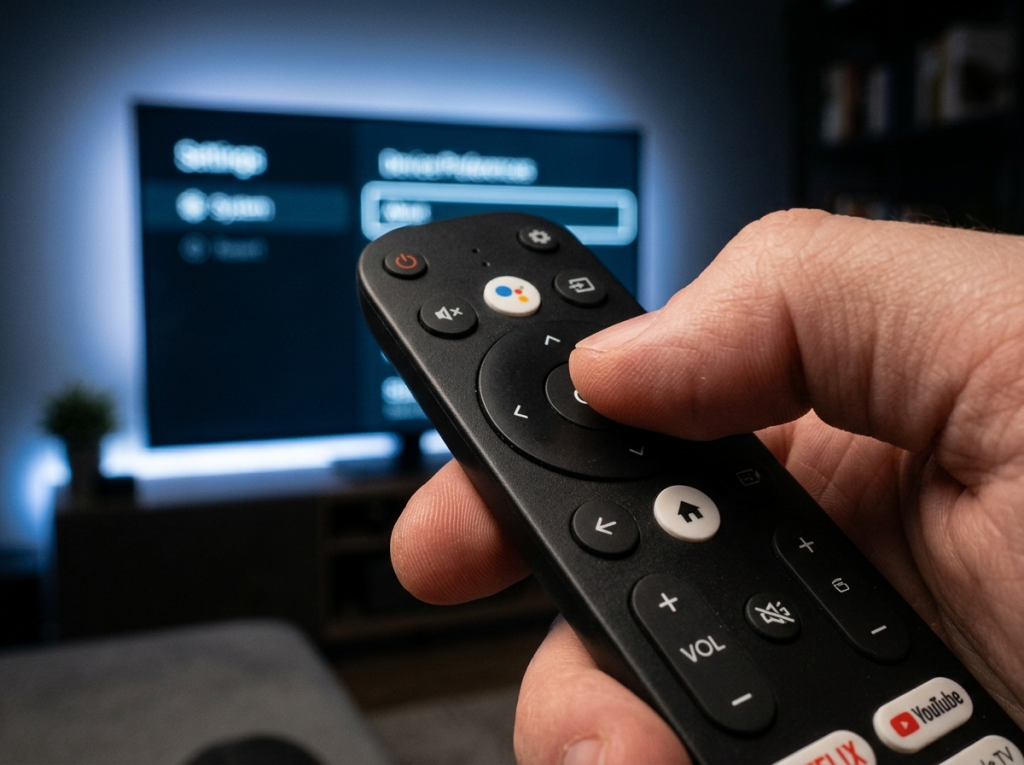
- Go to your device Settings and select Apps or Applications.
- Locate and select HDO Box from the installed application list.
- Tap on Clear Cache (and Clear Data if the issue persists).
- Restart your device and relaunch the application to check if the error is resolved.
Update to the Latest App Version
Using legacy releases often triggers stability bugs. Ensure you are running the most recent stable build released by the developers. Visit a trusted source or the official portal to download and install the latest APK update, which typically includes patches for known stability issues.
Check and Free Up Device Storage
Streaming applications require breathing room to buffer and store temporary media indexes. If your device storage is completely full, performance suffers drastically. Uninstall unused apps or clear large residual files to free up at least 1GB of internal memory.
Reinstall the Application Cleanly
If basic cache clearing does not solve the problem, a fresh installation is usually necessary. Uninstall the app completely from your system, restart your hardware to clear active memory, and then download and install a fresh copy of the application package.
Conclusion
Encountering a sudden startup error or black screen can be annoying, but fixing hdo box crashing issues is usually straightforward once you identify the root cause. By following simple maintenance routines like clearing corrupted cache files, keeping your software updated, and ensuring adequate storage space, you can maintain a smooth and uninterrupted streaming experience. Apply these easy troubleshooting steps today and get back to enjoying your favorite movies and shows without any frustrating interruptions.