HDO Box Video Has No Sound? Easy Audio Fixes to Try
Streaming your favorite movies and shows should be an enjoyable experience, but running into audio issues can instantly ruin the mood. If you have launched your media app only to realize that your hdo box no sound issue is dampening your viewing session, you are not alone. Audio glitches are among the most common technical hurdles users face on streaming applications. Whether you are watching on an Android smartphone, an Android TV box, or a Firestick, losing audio can be frustrating. Fortunately, most sound-related glitches stem from simple configuration errors, outdated app versions, or minor software bugs that you can resolve in just a few minutes.

Understanding the Root Causes of Audio Failure
Before diving into troubleshooting steps, it helps to understand why your setup might experience an hdo box no sound error. Sound delivery involves a chain of variables: the source file inside the media player, the decoding capabilities of your device, the connection cables (such as HDMI), and your hardware’s master volume or speaker settings.
When one link in this chain fails or falls out of sync, the video will play smoothly, but the audio track will remain completely silent. Identifying the exact symptom can save you a lot of guesswork. Does the audio cut out on every video, or only on specific links? Are external devices like Bluetooth speakers or soundbars connected? Answering these questions will point you directly toward the correct solution.
1. Check Your Device and Media Player Volume Settings
It sounds obvious, but the simplest explanation is frequently the correct one. Users often overlook basic hardware volume settings when troubleshooting streaming applications.
- Master Volume: Press the volume-up button on your remote or physical device to ensure your system volume is not muted or set too low.
- In-App Player Volume: Some integrated media players feature independent volume sliders. Tap the screen while video is playing to check if the internal player volume is turned down.
- Media vs. Ringtone Volume: On Android mobile phones and tablets, ensure your Media Volume slider is raised, as ringing or notification volumes operate independently from media playback.
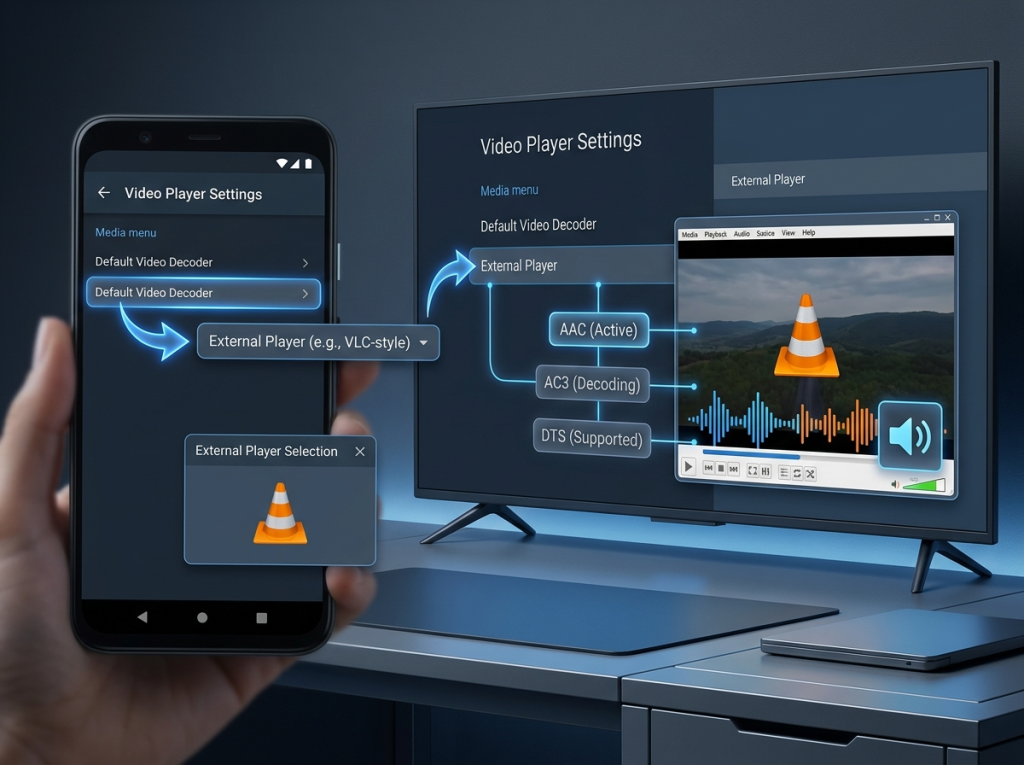
2. Switch the Default Video Decoder or External Player
Many media streaming applications rely on built-in decoders or external media players to process video and audio formats (such as AC3, DTS, or AAC codecs). If your device lacks native support for a specific audio codec, you will experience a lack of sound.
- Open the application settings menu.
- Locate the Video Player or Decoder preferences.
- Switch from the internal default player to an external alternative, such as VLC for Android.
- VLC and similar advanced players feature robust, built-in software codecs that automatically handle missing audio streams and resolve playback inconsistencies instantly.
3. Clear App Cache and Temporary Data
Over time, temporary system caches can become corrupted, leading to performance lags, video stuttering, or complete audio failure. Clearing out this residual data forces the application to build a fresh cache.
- Go to your device Settings.
- Navigate to Apps or Applications Manager.
- Find and select your streaming application from the list.
- Tap Clear Cache (avoid clearing data unless you want to reset the app entirely).
- Restart your device and launch the application again to test the audio output.
4. Update to the Latest App Version
Running an outdated version of your streaming software can cause severe compatibility issues with modern device operating systems and audio codecs. Developers regularly push updates that patch audio bugs, improve server stability, and upgrade decoding frameworks. Check for the newest release of your media application, download the official update package, and reinstall it to ensure your software is fully optimized.
5. Verify HDMI and Bluetooth Audio Connections
Hardware peripherals can often trick your system into routing sound to the wrong output channel.
- HDMI Cable Check: If you are streaming through an Android TV box or Firestick connected to a TV or soundbar, unplug the HDMI cable from both ends and plug it back in securely. A loose connection can easily disrupt high-definition audio transmission.
- Bluetooth Conflicts: Check if your phone or streaming stick is actively paired to a Bluetooth headset, wireless speaker, or car audio system. If your device is silently connected to an inactive Bluetooth accessory, the audio will play through that missing hardware instead of your speakers. Turn off Bluetooth temporarily to force sound back to your primary speakers.
Summary and Final Thoughts
Dealing with an unexpected hdo box no sound glitch can disrupt your entertainment, but the fixes outlined above are quick and straightforward. By systematically checking your volume levels, switching your media player decoders, clearing accumulated cache files, updating your software, and inspecting physical connections, you can restore crystal-clear sound in no time. Keep your software up to date and maintain your device settings to enjoy uninterrupted, high-quality streaming every single day.