HDO Box Drama Player Setup Guide: Why It’s Required & Is It Safe?
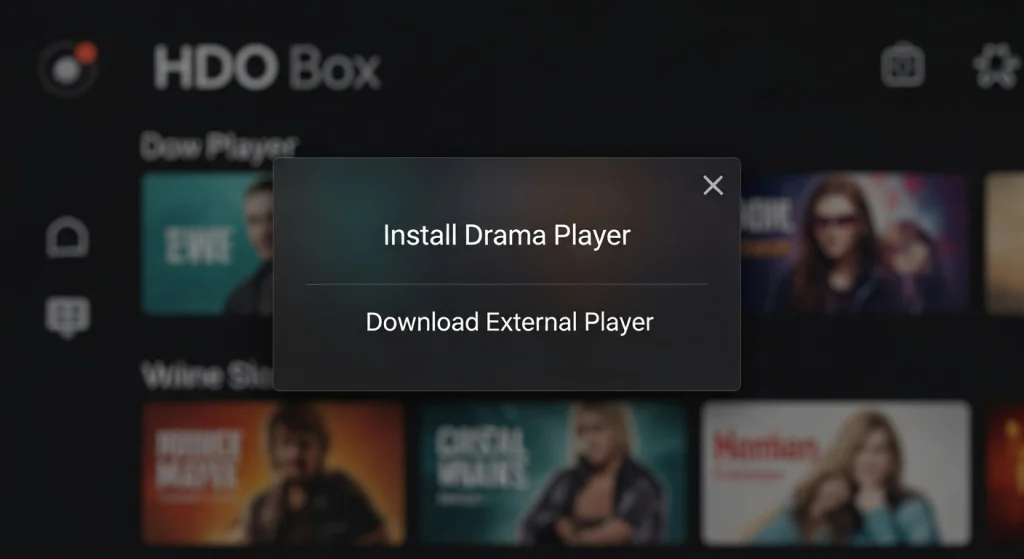
Just installed HDO Box and now you’re prompted to install a separate app called ‘Drama Player’? You’re not alone! It can feel confusing and raise immediate safety questions. This requirement to download an entirely separate piece of software—a dedicated media player—is a common practice in the world of third-party streaming APKs.
The short explanation is this: Drama Player acts as the mandatory default media renderer—the technical component that displays the video stream—for newer versions of HDO Box. This **HDO Box Drama Player Setup Guide** will answer three critical questions: Why it’s necessary, is it safe, and the exact steps to configure it.
The Technical Reason: Why HDO Box Splits the App
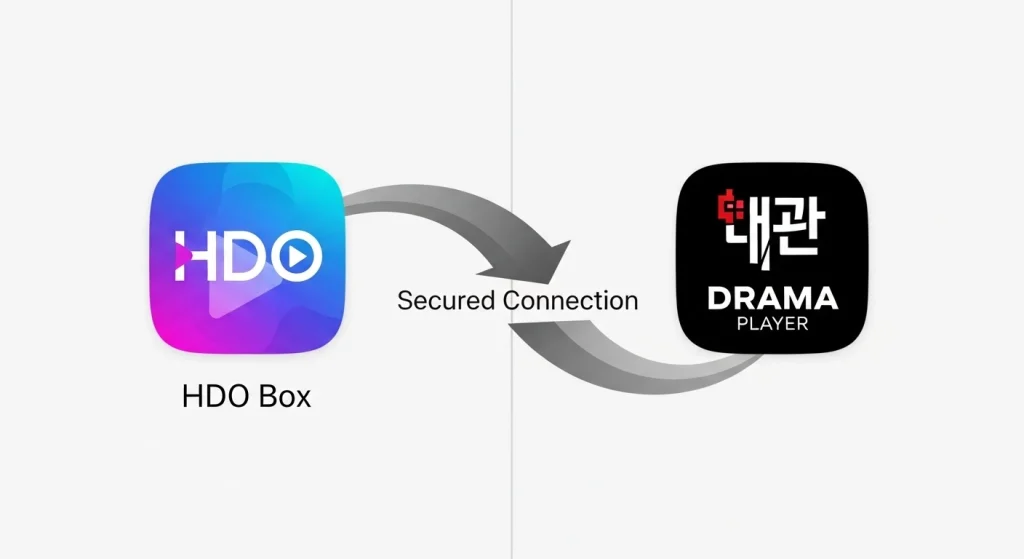
Most modern streaming applications, particularly those outside of official app stores, separate their functions into core components to ensure stability and maintenance. HDO Box handles the content indexing (finding the stream links), and Drama Player handles the resource-intensive task of decoding and playing the video.
Focus Separation (The “Why”)
Separating the content source (HDO Box) from the media player (Drama Player) allows developers to update one component without affecting the other. If a playback codec needs patching, only Drama Player requires an update, leading to better stability and faster bug fixes for the user.
The Default Renderer
Drama Player isn’t just an option; it is now the mandatory *default* player for HDO Box. When you select a title, HDO Box retrieves the stream URL and sends it directly to the Drama Player application for decoding and rendering. It serves as an optimized, embedded player specifically tuned for HDO Box’s link structure.
Is Drama Player Safe? Our Security Analysis
The immediate concern for any external application is safety. You are right to question it, as all sideloaded applications require due diligence.
The Short Answer and Cautionary Note
Drama Player, when downloaded from a reputable source, is generally considered safe and is a functioning media player. However, because it is an unofficial APK, the primary risk is downloading a modified, malicious version of the app from a corrupted third-party site. Always verify the source of your download.
Permissions Check: What Does It Need Access To?
- Network Access: Required to connect to HDO Box, receive the stream link, and load the actual video data from the content server.
- Storage Access: Needed to manage temporary buffer files and, potentially, save subtitle files or download content (if that feature is used).
- Draw Over Other Apps: Sometimes requested to display pop-up controls or settings overlays during playback.
The Essential Security Recommendation
We strongly recommend using a high-quality Virtual Private Network (VPN) while streaming content via HDO Box and Drama Player. A VPN encrypts your connection and masks your IP address, adding a critical layer of privacy and security against any potential third-party tracking or interception.
HDO Box Drama Player Setup Guide: Step-by-Step Configuration
The beauty of the integration is that HDO Box often handles the configuration automatically. Here is the standard setup process, especially important for Firestick and Android TV users.
Installation Checklist
Before attempting to install the Drama Player APK, ensure you have enabled **”Install Unknown Apps”** for the downloader tool (e.g., Downloader or your file explorer) in your device’s settings (usually under ‘Developer Options’). Confirm your HDO Box version is compatible with the latest Drama Player version.
Initializing the Player
Once both HDO Box and Drama Player are installed, launch HDO Box and select any movie or show to play. HDO Box should automatically detect and call the Drama Player. If you encounter a “Please Update Drama Player” error, hit **Cancel** and try playing the media again; this often initializes the player correctly.
Post-Configuration Test
When the video starts playing, perform a quick test: try adjusting the volume, checking for subtitle track options, or pausing/resuming. If these controls are responsive, your Drama Player is correctly configured and working seamlessly with HDO Box.
Conclusion: Seamless Streaming, Smart Security
Drama Player isn’t a malicious roadblock; it’s a necessary component for the current HDO Box architecture. By splitting playback duties, the developers aim to deliver a more stable streaming experience.
Your Next Step:
Now that you’ve successfully installed and configured the Drama Player, you may be running into annoying interruptions. Learn the simple tricks to stop **HDO Box Ads and Pop-ups** in our next essential security guide!