How to Use HDO Box on iPhone: A Complete Guide
Finding a reliable way to stream high-quality content on an iOS device can often feel like a game of cat and mouse. While the App Store is filled with premium subscriptions, many users are looking for more flexible alternatives. If you are trying to figure out how to use HDO Box on iPhone, you have likely realized that the process isn’t as straightforward as downloading a standard utility app. However, with the right approach, you can unlock a world of cinema-grade entertainment right from your palm.

What is HDO Box?
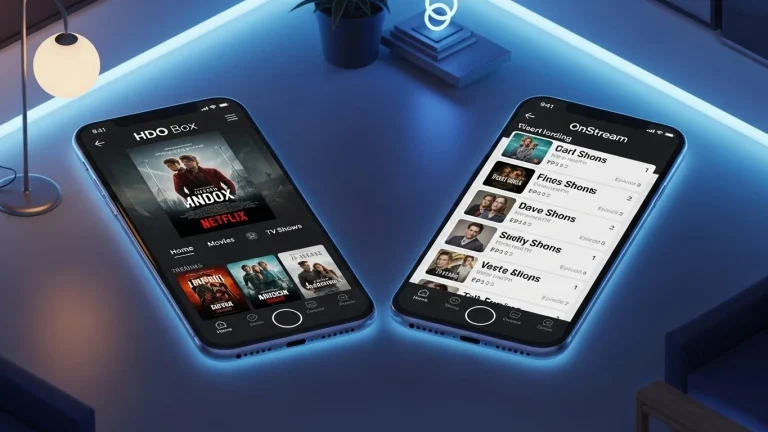
Before diving into the technical steps, it is important to understand what makes this application so popular. HDO Box is a third-party streaming media player known for its sleek interface and high-definition library. Unlike many older streaming apps that felt clunky or ad-heavy, HDO Box mimics the premium feel of platforms like Netflix or Disney+, offering a one-click play feature that eliminates the need to hunt for working links.
Is HDO Box Available on the App Store?
The short answer is: It depends on the day. Apple’s App Store policies are notoriously strict regarding third-party streaming apps. Occasionally, HDO Box developers release a “shell app”—an app that looks like a basic utility (such as a unit converter or a calculator) but unlocks the streaming interface once installed. Because these apps are frequently flagged and removed, users often have to look toward alternative installation methods like TestFlight or third-party app installers.
Step-by-Step: How to Use HDO Box on iPhone
To successfully use HDO Box on iPhone, you need to follow a specific sequence to ensure the app runs smoothly without crashing. Since iOS is a closed ecosystem, “sideloading” or using developer testing tools is the most common path.
Method 1: Using the TestFlight Approach (Recommended)
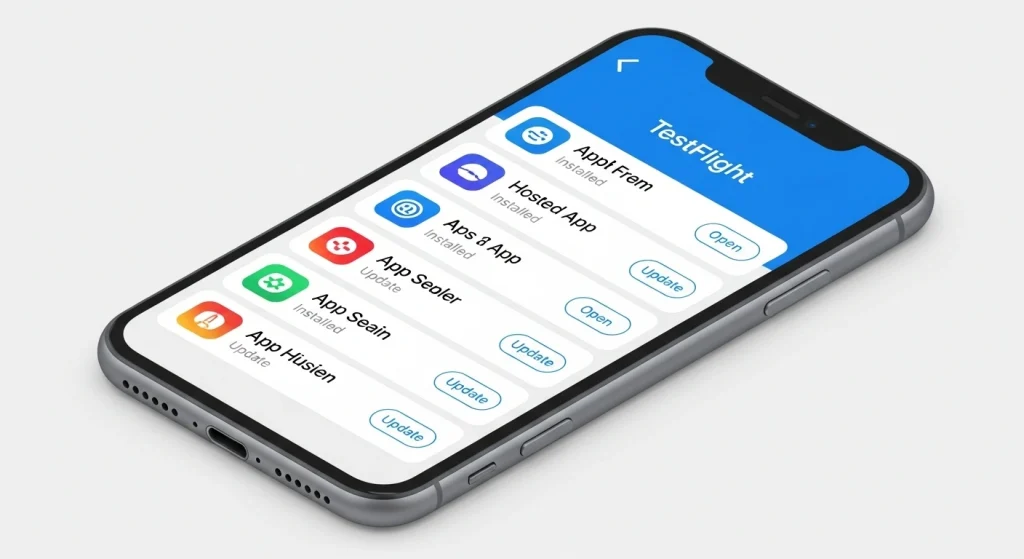
TestFlight is Apple’s official tool for developers to test apps. This is currently the most “stable” way to run HDO Box.
- 1Download TestFlight: Search for “TestFlight” in the official App Store and install it.
- 2Find the Invitation Link: Visit the official HDO Box website to find the latest TestFlight invitation link.
- 3Accept the Invite: Once you click the link, TestFlight will open. Tap “Accept” and then “Install.”
Method 2: Third-Party App Store Installers
If the TestFlight slots are full, you can use installers like TutuApp, AppValley, or Panda Helper.
Step 01: Download the configuration profile of your chosen installer from their official site.
Step 02: Go to Settings > General > VPN & Device Management and “Trust” the developer profile.
Step 03: Search for “HDO Box” within the installer and hit download.
Optimizing Your Viewing Experience
Once you have the app running, simply knowing how to open it isn’t enough. To truly master how to use HDO Box on iPhone, you should tweak a few settings.
1. Media Player
HDO Box often works best when paired with an external player like VLC for Mobile.
2. Trakt Integration
Sync your “Watchlist” and “History” across all your devices using Trakt.tv.

Troubleshooting Common Issues
Even the best apps hit snags on iOS. If the app refuses to open or shows a “Developer Not Trusted” error, navigate back to your Device Management settings. Usually, Apple has revoked the certificate, and you will need to delete the app and reinstall the latest version.
Pro Tip: If movie posters aren’t loading, check your internet connection or toggle your Airplane mode on and off to refresh your IP address.
Final Thoughts
Learning how to use HDO Box on iPhone gives you a level of entertainment freedom that the standard App Store rarely provides. While it requires a bit more effort than a one-tap install, the reward is a massive library of high-definition content organized in a beautiful, user-friendly interface.