HDO Box Playback Error: Common Causes and Possible Solutions
Streaming your favorite movies and TV shows on HDO Box is usually a seamless experience, but running into an unexpected playback glitch can instantly ruin movie night. Whether you are greeted by an endless loading wheel, a black screen, or a sudden crash right in the middle of a thrilling climax, streaming errors are frustrating.
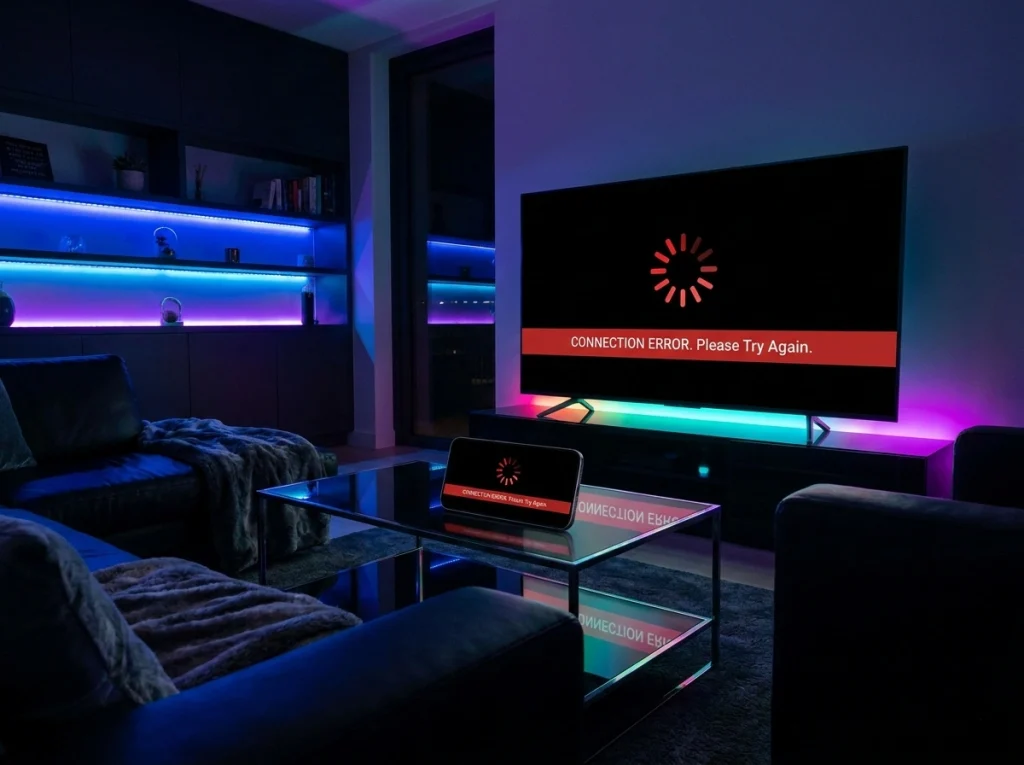
If you are currently searching for a fix to an hdo box playback error, you are not alone. Many users occasionally encounter technical hurdles due to server congestion, outdated app versions, or local network hiccups. This comprehensive guide breaks down why these errors happen and walks you through straightforward, actionable steps to get your media player working smoothly again.
Understanding the Root Causes of an HDO Box Playback Error
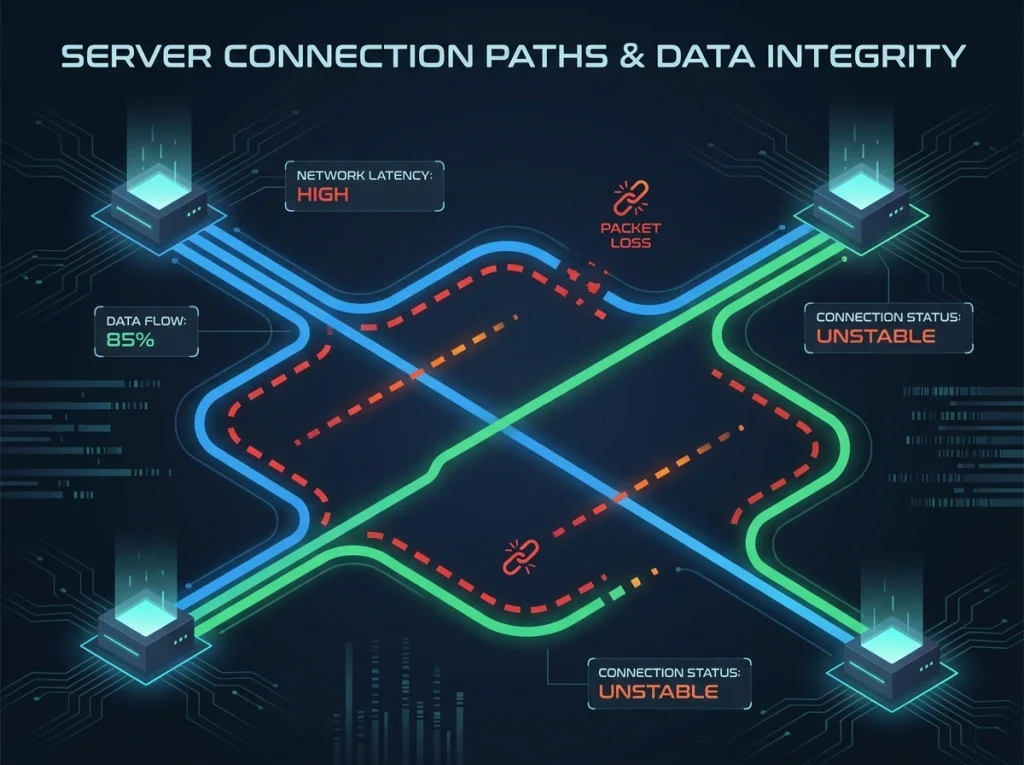
Before jumping straight into troubleshooting, it helps to understand what triggers these disruptions. Unlike official streaming platforms with dedicated massive server farms, third-party apps rely on external video scrapers and link providers. When a link fails to load, the player triggers a playback interruption.
Common culprits behind a persistent hdo box playback error typically include:
Server Overload
High traffic on specific video host servers during peak evening hours causing server drops.
Corrupted App Cache
Temporary data buildup that interferes with video rendering and player code execution.
Outdated Software
Running an older version of the APK that lacks recent bug fixes and stream scrapers.
Network Instability
Weak Wi-Fi signals or Internet Service Provider (ISP) speed throttling.
Effective Troubleshooting Steps to Fix Playback Issues
Resolving these glitches rarely requires advanced technical skills. Working through these proven methods systematically will restore your streaming capabilities in just a few minutes.
1: Clear App Cache and Temporary Data
Over time, accumulated cache files can cause severe performance lags and video freezing. Go to your device Settings, navigate to Apps or Applications Manager, and select HDO Box. Tap on Storage and choose Clear Cache (avoid clearing data unless necessary, as it resets your preferences). Restart the application and try playing your video again.
2: Switch the Default Video Source or Link
Most media streaming applications do not host files directly; instead, they aggregate links from various web sources. If a specific link is broken or experiencing heavy traffic, switching to an alternative scraper link often resolves the issue instantly. When a video refuses to load, look for the source selection menu and pick a different mirror link.
3: Update to the Latest HDO Box Version
Running outdated software is a primary catalyst for recurring playback crashes. Developers frequently push patches to fix broken API integrations and video codecs. Check your current app version against the official release, download the latest APK file, and install the update over your existing setup.
4: Check Your Internet Connection and Restart Router
High-definition video streaming demands stable bandwidth. A momentary drop in your internet speed can interrupt the video buffer stream. Try toggling your Wi-Fi off and on, or perform a full power cycle on your home router by unplugging it for 30 seconds before reconnecting.
5: Change or Update Your External Player
Many users prefer integrating external media players like VLC or MX Player for advanced subtitle control and hardware acceleration. If your external player encounters a codec error, update the player app from your app store or switch back to the built-in default player within HDO Box settings.

Preventing Future Streaming Interruptions
While technical glitches can never be entirely avoided on third-party streaming apps, you can significantly minimize downtime by adopting a few smart habits. Regularly clear your device storage, keep your applications updated to the newest stable releases, and ensure your device operating system is up to date. Additionally, using a reliable VPN can sometimes bypass local ISP throttling that interferes with video buffer speeds.
Conclusion
Encountering an hdo box playback error can be annoying, but it is rarely permanent. By systematically clearing your cache, switching alternative video links, updating your app version, and maintaining a stable internet connection, you can overcome these streaming hurdles quickly. Get back to enjoying your favorite entertainment without the headache of endless buffering screens.