HDO Box Video Has No Sound? Easy Audio Fixes to Try
Finding your favorite movie or TV show on HDO Box only to realize the video has no sound can be frustrating. Streaming apps rely heavily on seamless media playback, and audio glitches can instantly ruin your movie night. Whether you are using an Android phone, a Firestick, or an Android TV box, audio failure usually stems from minor app bugs, incorrect media player settings, or device-level volume conflicts.
Fortunately, resolving hdo box video no sound errors is usually straightforward and requires just a few simple troubleshooting steps. Let us walk through the most effective ways to diagnose and fix audio issues on HDO Box so you can get back to uninterrupted streaming.
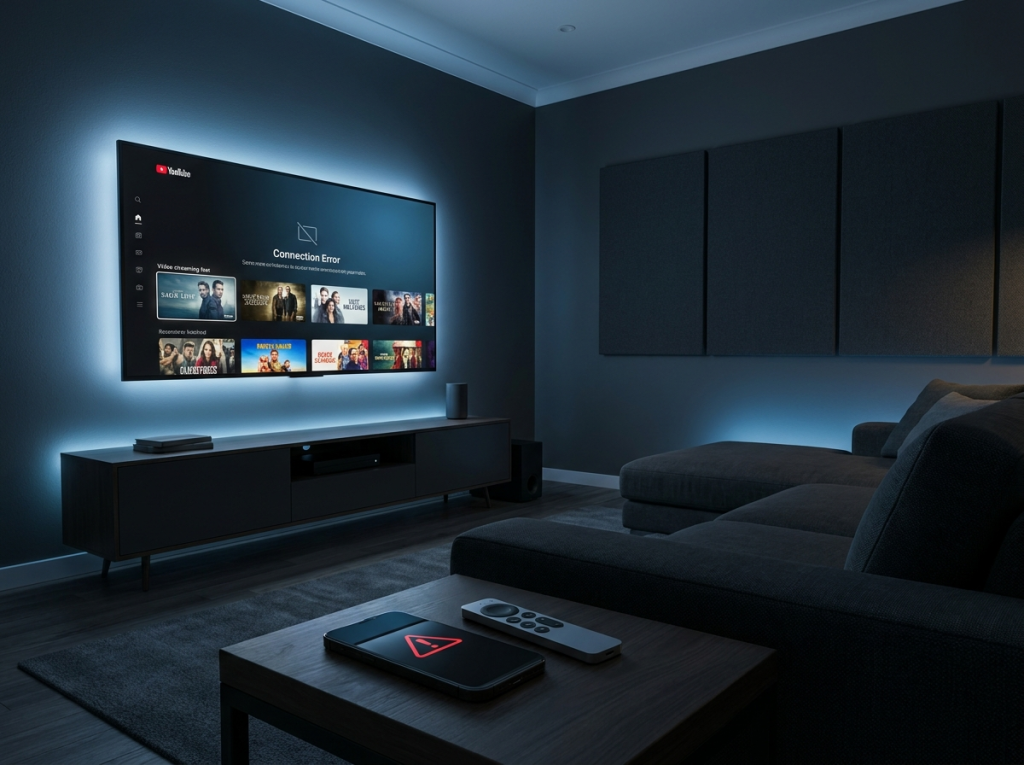
Why Is HDO Box Not Playing Any Sound?
Before jumping into the fixes, it helps to understand what causes audio to drop out in streaming applications. Most of the time, the issue is not with the video file itself. Instead, it is usually triggered by one of the following factors:
- External Media Player Conflict: HDO Box often relies on external players like VLC or ExoPlayer to handle media decoding. If the player’s audio settings are misconfigured, sound will fail.
- Cached Data Corruption: Accumulated temporary files and cache inside the HDO Box app can interfere with normal media playback routines.
- Audio Passthrough Errors: Connecting your streaming device to an external soundbar, home theater, or Bluetooth speaker can sometimes cause multichannel audio decoding mismatches.
- Outdated App Version: Running an older version of HDO Box can lead to compatibility issues with newer video codecs and audio streams.
Simple Fixes for HDO Box Video No Sound
1. Check Device Volume and Mute Settings
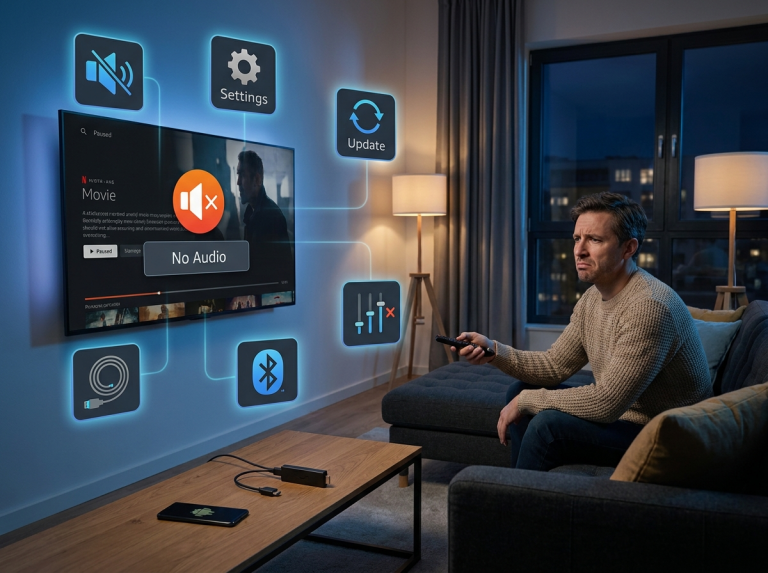
It sounds simple, but it is the most frequently overlooked culprit. Make sure your device volume is turned up and that you have not accidentally muted your television or streaming stick. If you are using a Bluetooth headset or external speaker, disconnect it temporarily to check if the sound routes properly through your device’s built-in speakers.
2. Switch Your External Video Player
HDO Box allows you to choose which video player handles your streams. If your default player is experiencing audio codec compatibility issues, switching to a robust alternative like VLC Media Player usually solves the problem instantly.
- Open HDO Box and go to app settings.
- Locate the Default Video Player option.
- Switch from your current player to VLC (or vice versa).
- Restart your video and check if the audio returns.

3. Clear App Cache and Data
Over time, corrupted cache files can disrupt normal app operations, including audio-visual synchronization. Clearing the cache forces the application to build fresh temporary files.
- Go to your device Settings.
- Navigate to Apps or Applications, then select HDO Box.
- Click on Clear Cache (and Clear Data if the issue persists).
- Relaunch the app and test your video playback.
4. Adjust Audio Passthrough Settings
If you use a surround sound system, soundbar, or home theater receiver, your audio output settings might be forcing an unsupported format. Look inside your streaming device’s sound settings (such as Firestick Audio settings or Android TV Sound settings) and toggle Dolby Digital Output or Passthrough off, or switch from “Best Available” to “PCM/Stereo.”
5. Update HDO Box to the Latest Version
Using an outdated build can result in missing audio codecs or unresolved bugs. Always ensure you are running the most recent version of the app. Download the official update from a trusted source, install it over your current version, and restart your streaming device.
Conclusion
Dealing with hdo box Video no sound errors can halt your entertainment, but it rarely points to a permanent problem. By systematically checking your device volume, switching your external media player, clearing corrupted cache data, and adjusting audio output settings, you can resolve most audio glitches within minutes. Keep your app updated, maintain proper media player configurations, and enjoy seamless streaming for all your favorite content.