How to Change Language in HDO Box: Step-by-Step Guide
Finding the perfect movie or show is only half the battle; being able to understand it in your native tongue is what makes the experience truly immersive.
If you have recently installed this popular streaming app, you might find that the default settings don’t align with your preferences. Whether you want to navigate the interface more easily or need specific subtitles for a foreign film, knowing how to change language is essential for a seamless viewing experience.
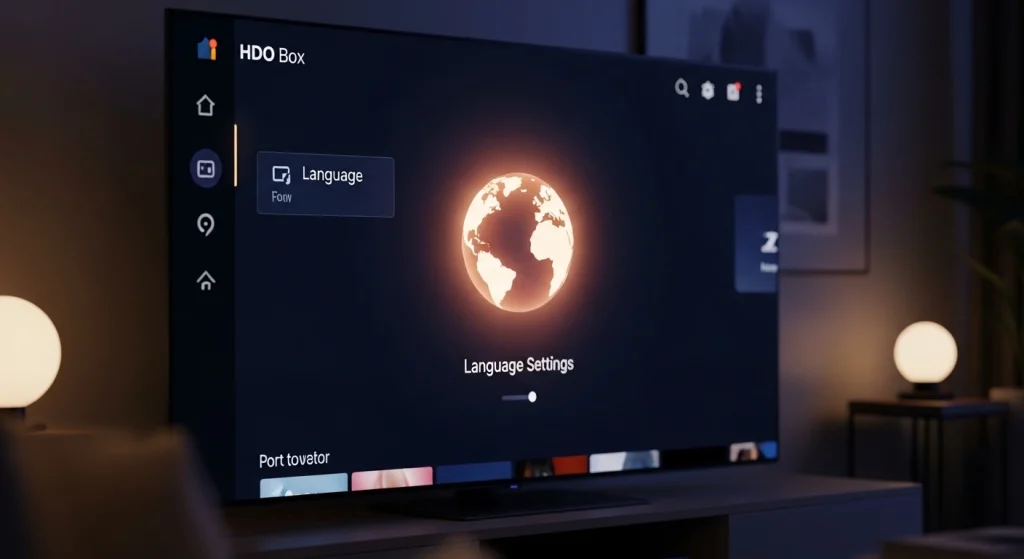
In this guide, we will walk you through the precise steps to modify both the app interface and the video playback settings, ensuring you never miss a line of dialogue again.
Why You Might Need to Change Language Settings
HDO Box is used globally, which means it supports a variety of linguistic options. Users often look to switch settings for several reasons:
- Better Navigation: Navigating menus is much faster when the UI is in your primary language.
- Subtitle Synchronization: Ensuring the audio matches your preferred text translation.
- Language Learning: Some users switch languages to help immerse themselves while learning a new tongue.
How to Change Language in HDO Box (Interface & Content)
Changing the settings is straightforward, but the options are tucked away in specific menus. Follow these steps to update your preferences:
1 Access the Settings Menu
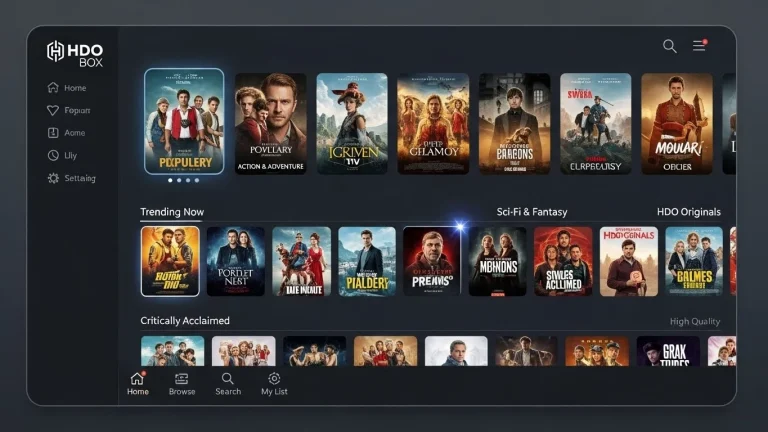
Launch the HDO Box app on your device. Look for the “Settings” icon, usually represented by a gear symbol located in the bottom right corner.
2 Locate Language Options
Once inside the settings menu, scroll down until you see the “Language” or “App Language” section. Click on it to open the selection list.
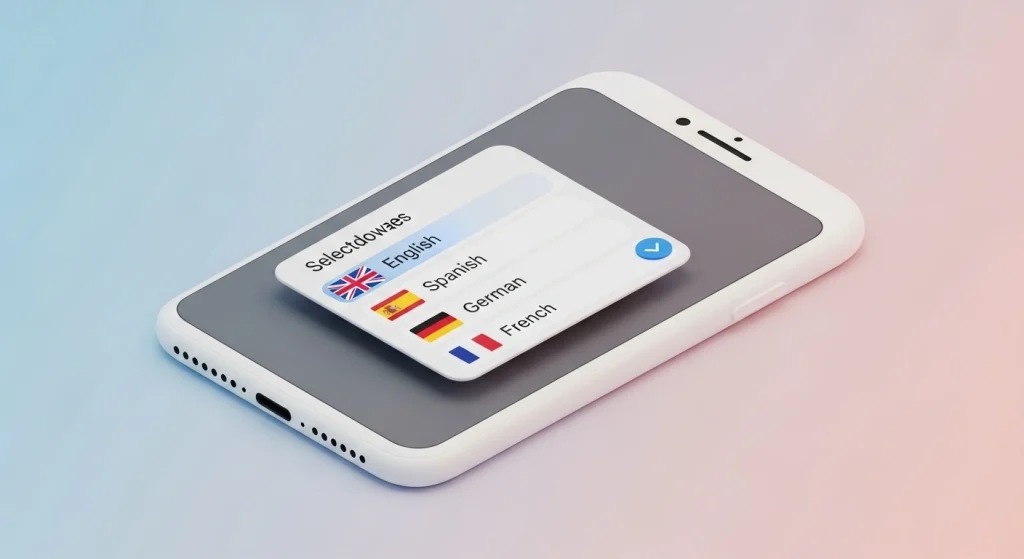
3 Select Your Preferred Language
Browse the list (English, Spanish, French, etc.) and tap your choice. The app will refresh immediately to apply the changes.
Step 4: Adjusting Subtitle Languages during Playback
Sometimes, changing the app language isn’t enough; you also need to change the language of the subtitles while a movie is playing:
- Open the video you want to watch.
- Tap the screen to bring up the player controls.
- Click on the “CC” or “Subtitles” icon.
- Choose your preferred language track from the list.
Troubleshooting Language Issues
The Language Doesn’t Change After Selection
If you select a new language and the app still displays the old one, try force-closing the application. Go to your device’s Settings > Apps > HDO Box > Force Stop, then relaunch the app.
Subtitles Are Not Available in My Language
HDO Box pulls content from various sources. If a language isn’t appearing, it may be because a translation file hasn’t been uploaded yet. Checking for an app update in your downloader can sometimes provide more language options.
Maximizing Your Streaming Experience
To get the most out of the app, ensure your internet connection is stable. Furthermore, if you are using an external player like VLC or MX Player through HDO Box, remember that you will need to change the language settings within those specific player apps rather than the HDO Box interface itself.